

Troubleshooting Steps
1
Check if default port 8281 is available and identify the process
Verify that port 8281 is not being used by another application. Open Command Prompt and run:This will show you the Process ID (PID) using this port. Then identify which process is using the port by running (replace 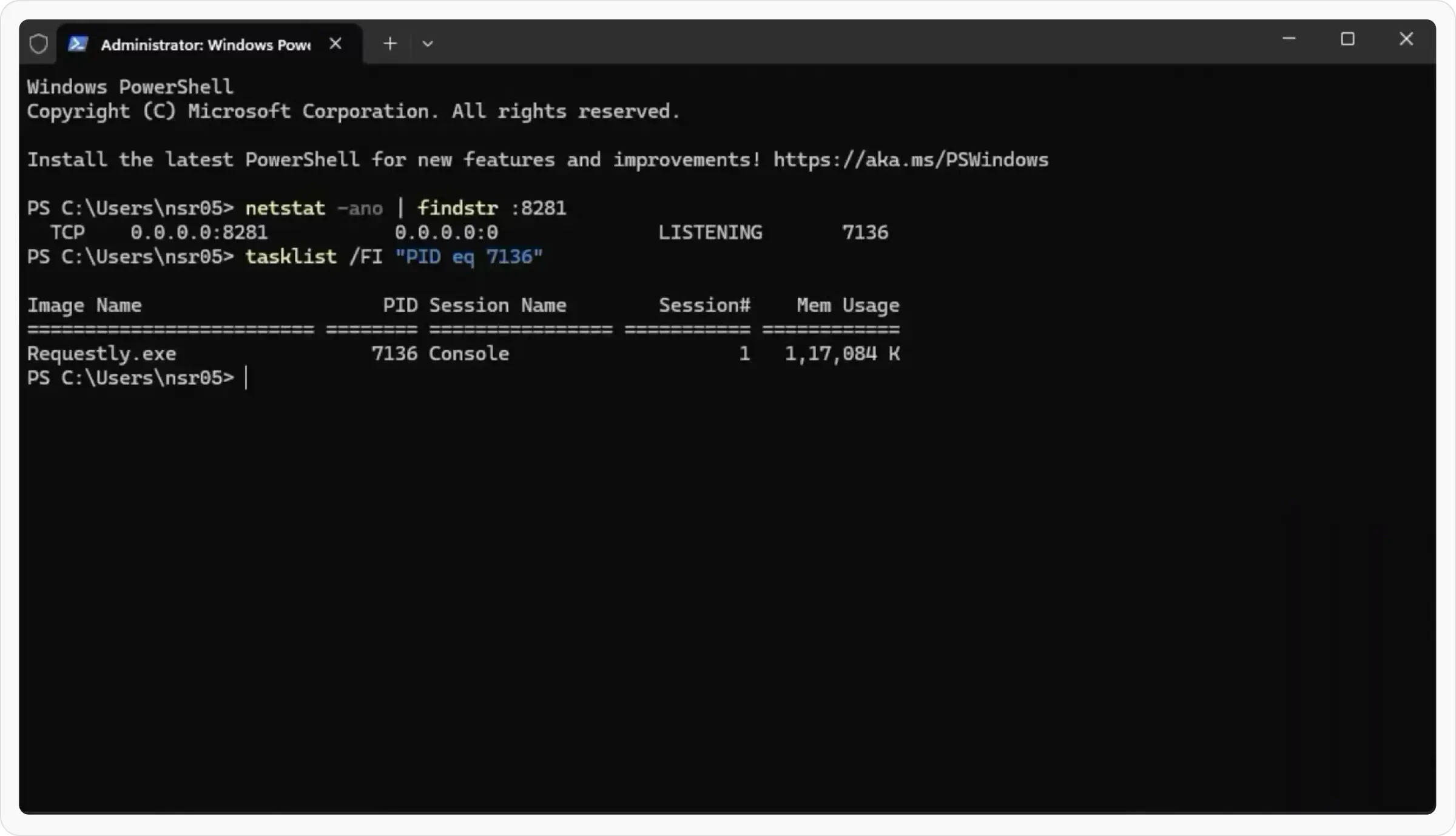
7136 with the PID from the previous command):2
Change default proxy port if needed
If the port is being used by an application other than Requestly Interceptor: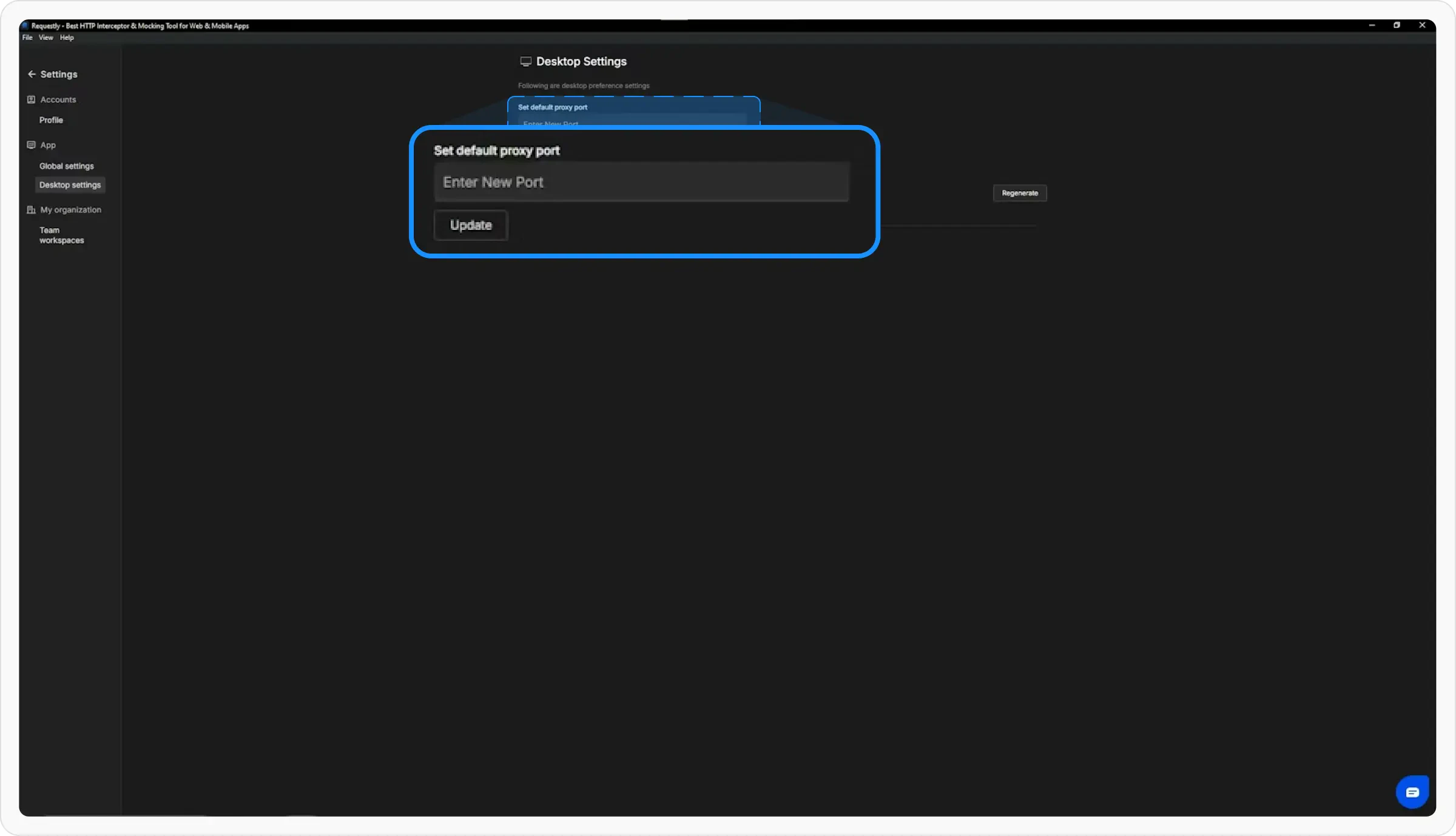
- Go to Requestly Interceptor Settings
- Change the default proxy port to an available port
3
Try manual proxy connection (if Requestly Interceptor is using the port)
If Requestly Interceptor is using port 8281 but you still see the “No Proxy” issue:
- Get your local
IPv4address by runningipconfigin Command Prompt - Try connecting to the proxy manually using your local IP and port 8281
- Configure your system or browser to use this proxy:
<your-local-ip>:8281