> ## Documentation Index
> Fetch the complete documentation index at: https://interceptor-docs.requestly.com/llms.txt
> Use this file to discover all available pages before exploring further.
# Rules Not working
> Having trouble with your rules? Follow this step-by-step checklist to quickly identify and resolve common issues with the Requestly Interceptor browser extension.
If your Requestly Interceptor rules are not applying, use this checklist in order. Most issues come from extension permissions, paused Requestly Interceptor state, inactive groups, or rule-type limitations.
## Start Here
Check these basics first:
* the Requestly Interceptor extension is installed and enabled
* site access is allowed for the page you are testing
* Requestly Interceptor is running and not paused
* the relevant rule group is turned on
* you refreshed the page or retriggered the request after saving the rule
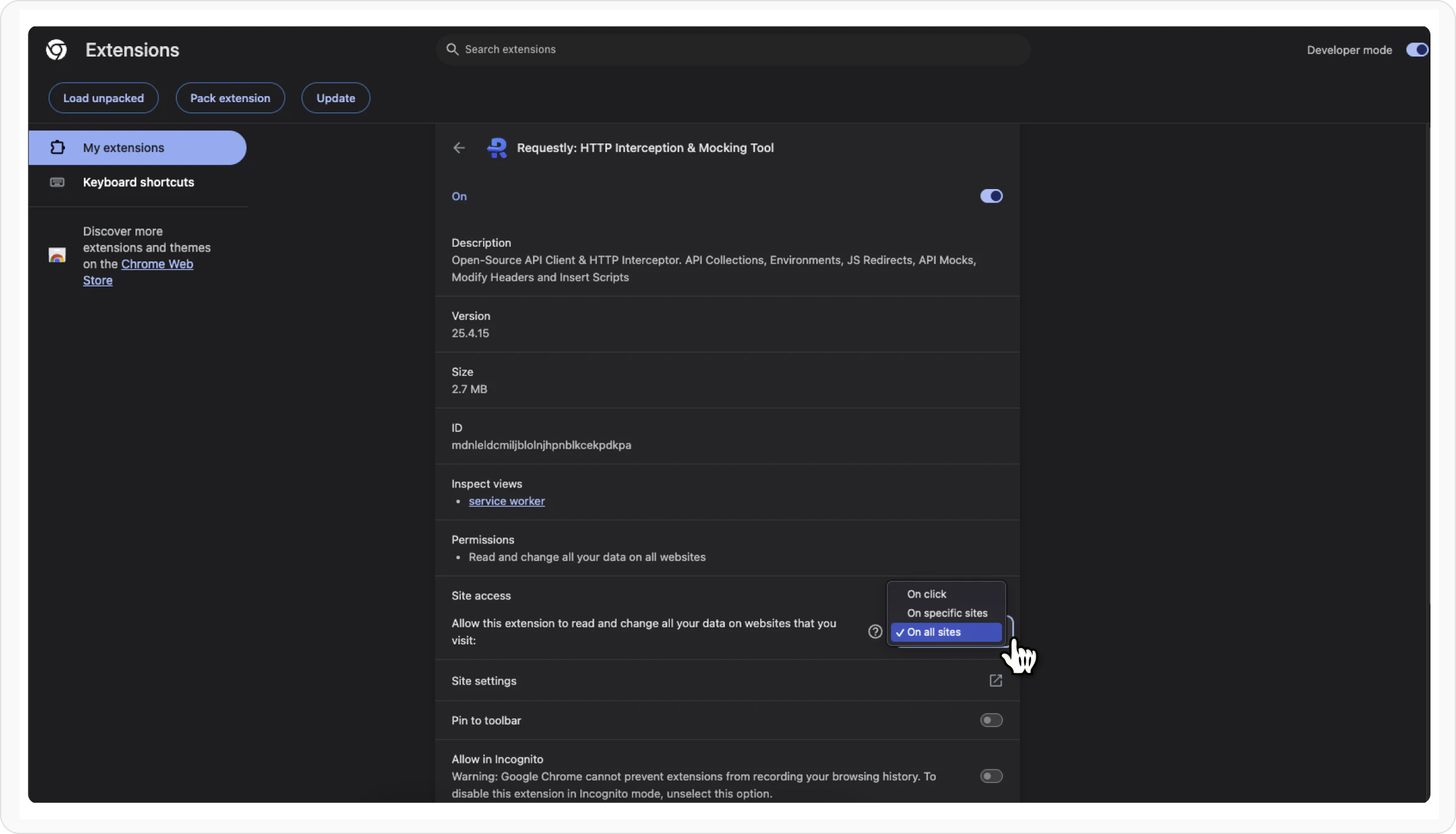
## 1. Confirm Extension Permissions
Go to `chrome://extensions/` in your browser.
Find the Requestly Interceptor extension and click **Details.**
 Under **Site access**, choose **"On all sites"**.
 ## 2. Ensure the Extension Is Enabled
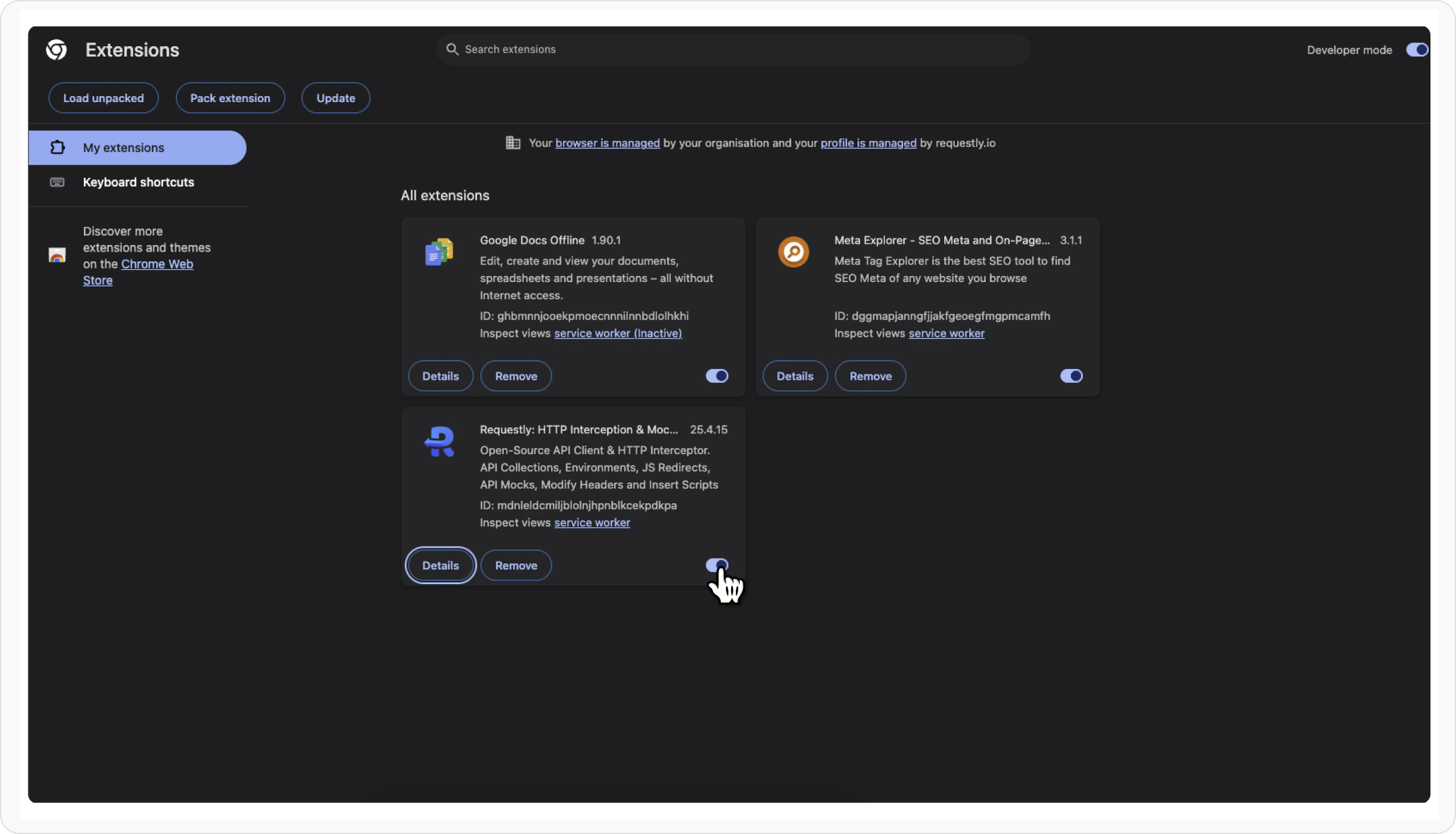
Go to `chrome://extensions/`
Make sure the toggle for Requestly Interceptor is **enabled** (blue).
## 2. Ensure the Extension Is Enabled
Go to `chrome://extensions/`
Make sure the toggle for Requestly Interceptor is **enabled** (blue).
 ## 3. Check If the Rule Group Is Active
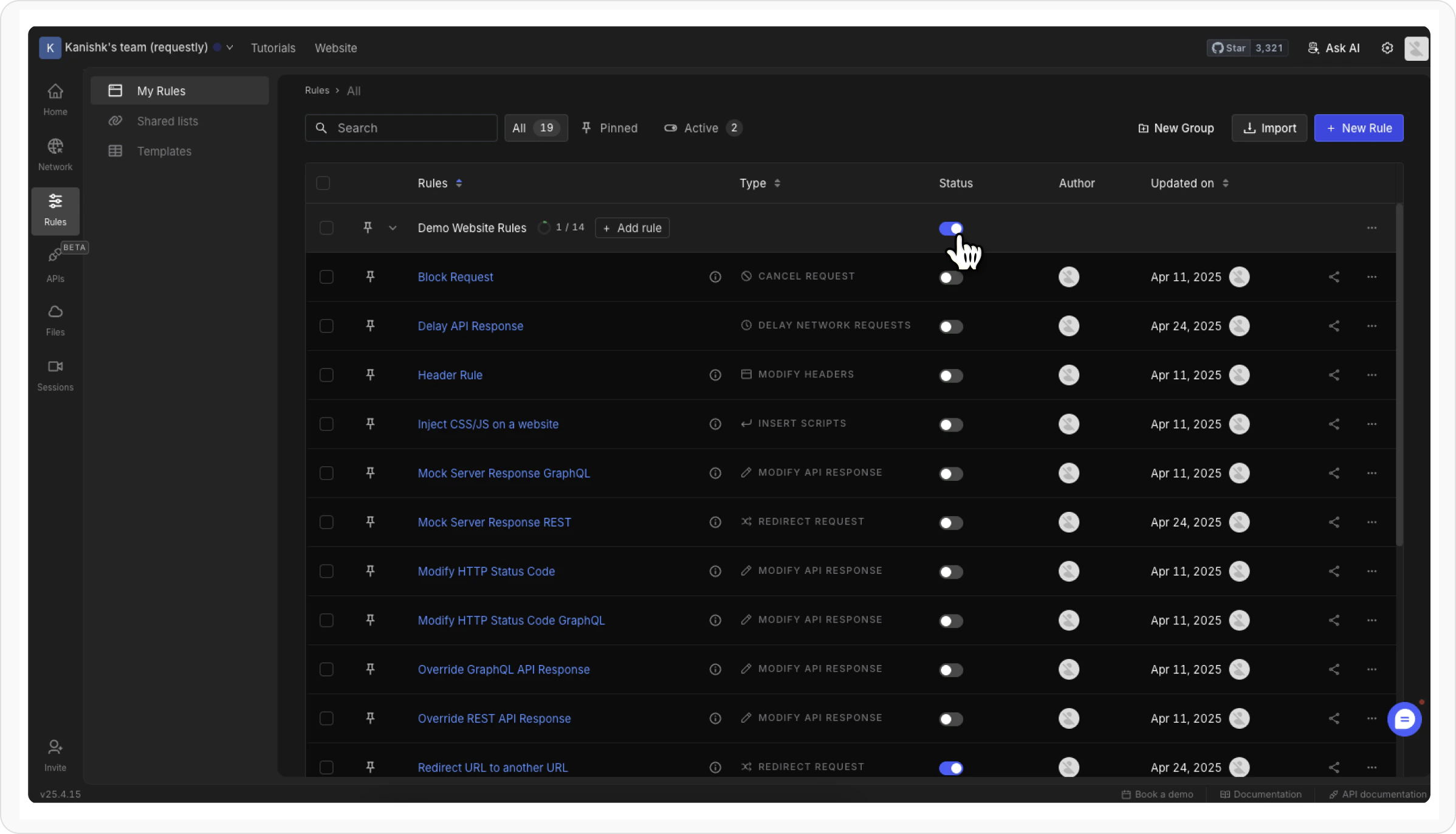
Groups allow you to organize rules into logical groups and enable/disable them in one go.
Visit the
Requestly Interceptor dashboard
.
Find the group that contains your rule.
Make sure the toggle for that group is switched **on**
## 3. Check If the Rule Group Is Active
Groups allow you to organize rules into logical groups and enable/disable them in one go.
Visit the
Requestly Interceptor dashboard
.
Find the group that contains your rule.
Make sure the toggle for that group is switched **on**
 ## 4. Activate the Extension (If Disabled)
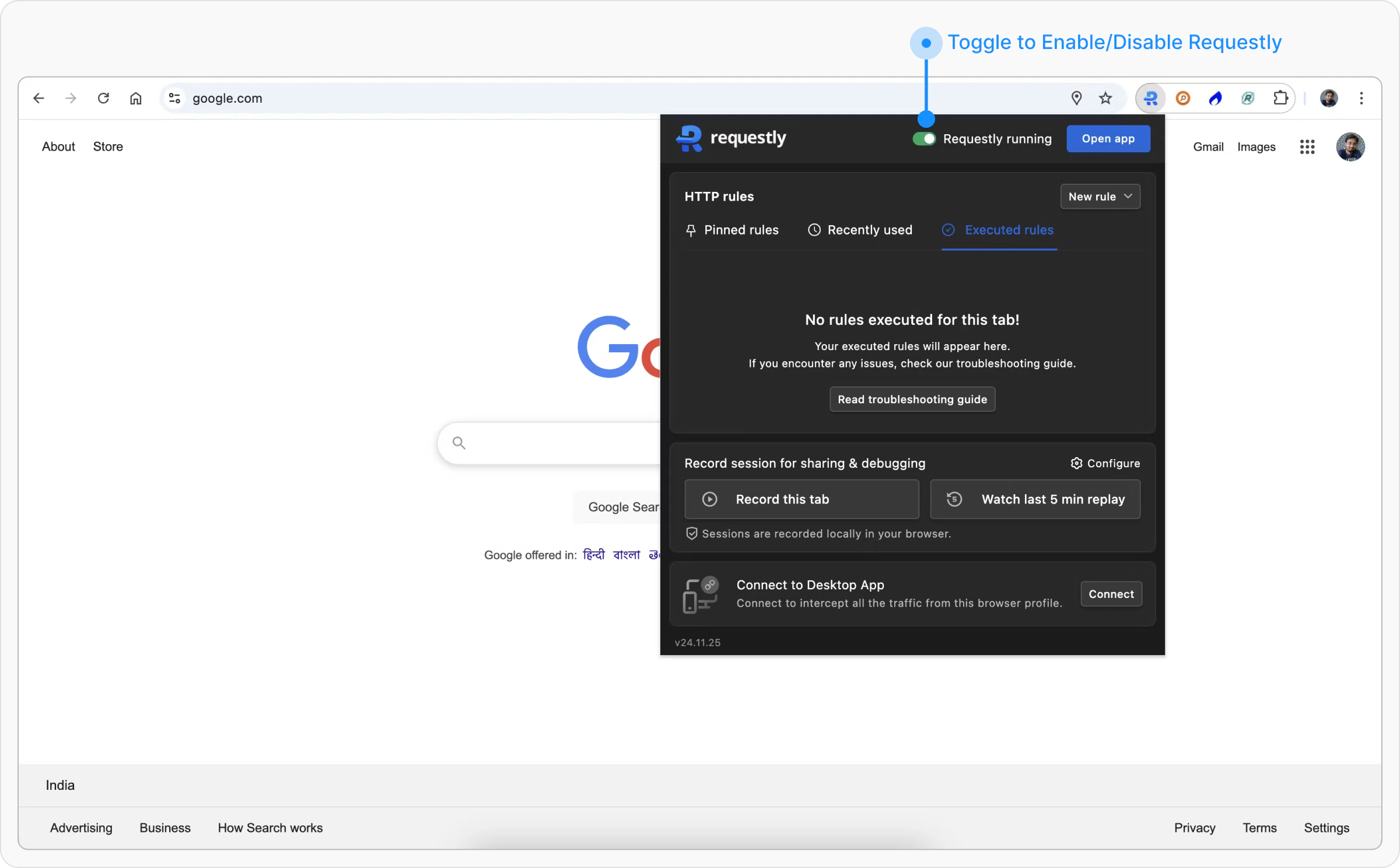
Locate and click the Requestly Interceptor icon in your browser’s toolbar to open the menu.
## 4. Activate the Extension (If Disabled)
Locate and click the Requestly Interceptor icon in your browser’s toolbar to open the menu.
 Click the Requestly Interceptor icon in your browser’s toolbar and find the toggle labeled "Requestly Interceptor paused." Click the toggle to activate Requestly Interceptor. The label will change to "Requestly Interceptor running," confirming activation.
 Refresh your browser page to ensure that Requestly Interceptor’s rules are properly applied.
## 5. Recheck The Rule Match
Before assuming the rule is broken, confirm that it actually matches the request:
* the URL condition matches the request you are testing
* the rule type supports the traffic you are trying to change
* the target page is not a browser-internal page such as `chrome://`
Use [Test This Rule](/http-rules/advanced-usage/test-rules) to verify whether the rule conditions match the request you expect.
## **Common Issues by Rule Type**
> Some rule types in Requestly Interceptor have specific behaviors or limitations. Here's what you need to know for each one:
### Modify API Response
**Not visible in Chrome DevTools**\
API response modifications made by Requestly Interceptor don’t show up in the browser’s DevTools, but they’re still applied in the background.
**Only works with XHR/Fetch requests**\
Modify API Response **can’t modify** HTML, CSS, or other static files in the extension. For that, use the [Desktop App](https://requestly.com/downloads/desktop/).
### Modify Request Body
Only works with **XHR** and **Fetch** requests
### Modify Response Headers
Response Headers modification done by Requestly Interceptor are not visible in Browsers devtool but they are actually modified.
### Delay Request
In the browser extension, delays are automatically capped to prevent performance issues. XHR/Fetch requests can be delayed up to 5,000 ms, while other resources (like JS, CSS, images) support up to 10,000 ms. For unlimited delays, switch to the **Desktop App**
### Insert Script Rule
**Inline JavaScript is ignored when using the URL option**\
When you choose the **URL** method, only the external script is loaded. Any inline JavaScript written between the `
Refresh your browser page to ensure that Requestly Interceptor’s rules are properly applied.
## 5. Recheck The Rule Match
Before assuming the rule is broken, confirm that it actually matches the request:
* the URL condition matches the request you are testing
* the rule type supports the traffic you are trying to change
* the target page is not a browser-internal page such as `chrome://`
Use [Test This Rule](/http-rules/advanced-usage/test-rules) to verify whether the rule conditions match the request you expect.
## **Common Issues by Rule Type**
> Some rule types in Requestly Interceptor have specific behaviors or limitations. Here's what you need to know for each one:
### Modify API Response
**Not visible in Chrome DevTools**\
API response modifications made by Requestly Interceptor don’t show up in the browser’s DevTools, but they’re still applied in the background.
**Only works with XHR/Fetch requests**\
Modify API Response **can’t modify** HTML, CSS, or other static files in the extension. For that, use the [Desktop App](https://requestly.com/downloads/desktop/).
### Modify Request Body
Only works with **XHR** and **Fetch** requests
### Modify Response Headers
Response Headers modification done by Requestly Interceptor are not visible in Browsers devtool but they are actually modified.
### Delay Request
In the browser extension, delays are automatically capped to prevent performance issues. XHR/Fetch requests can be delayed up to 5,000 ms, while other resources (like JS, CSS, images) support up to 10,000 ms. For unlimited delays, switch to the **Desktop App**
### Insert Script Rule
**Inline JavaScript is ignored when using the URL option**\
When you choose the **URL** method, only the external script is loaded. Any inline JavaScript written between the `