> ## Documentation Index
> Fetch the complete documentation index at: https://interceptor-docs.requestly.com/llms.txt
> Use this file to discover all available pages before exploring further.
# Record Bug Reports
> Learn how to record screen, console logs, network logs, etc then securely share them to speed up issue resolution.
***
Requestly Interceptor **Sessions** helps you capture and share detailed bug reports by recording browsing sessions along with mouse movements, clicks, network logs, console logs, environment details, and LocalStorage changes. It provides the information developers need to reproduce and debug issues without relying only on written reproduction steps.
Let’s see how to record a bug report, save it, and share it with your team.
This feature is supported in Browser Extensions only.
## Configure Session Recording
To begin using **Sessions**, the first thing you'll need to do is **set up your pages**. This ensures that the right pages are ready for recording.
Go to the **Sessions** tab from the left-hand menu in the Requestly Interceptor web app.
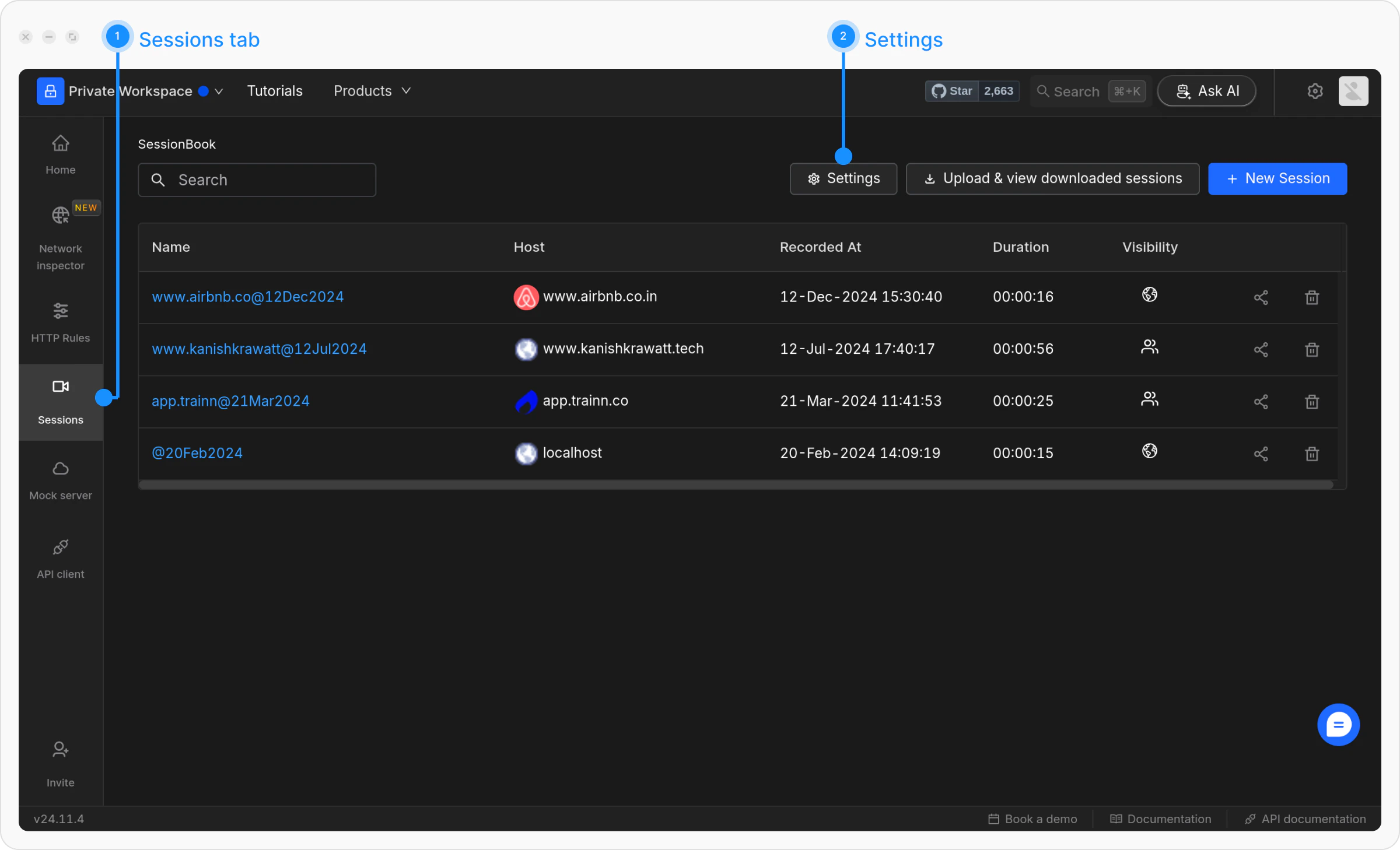 Click on **Settings**.
Choose one of the following options:
* **All Pages**: Record sessions on all the websites you visit.
* **Specific Pages**: Record only on specific web pages matching the criteria. Websites and web pages can be filtered based on URL or Hostname and matched using Equals, Contains, RegEx, and Wildcard conditions on the string you type in the source URL field.
Click on **Settings**.
Choose one of the following options:
* **All Pages**: Record sessions on all the websites you visit.
* **Specific Pages**: Record only on specific web pages matching the criteria. Websites and web pages can be filtered based on URL or Hostname and matched using Equals, Contains, RegEx, and Wildcard conditions on the string you type in the source URL field.
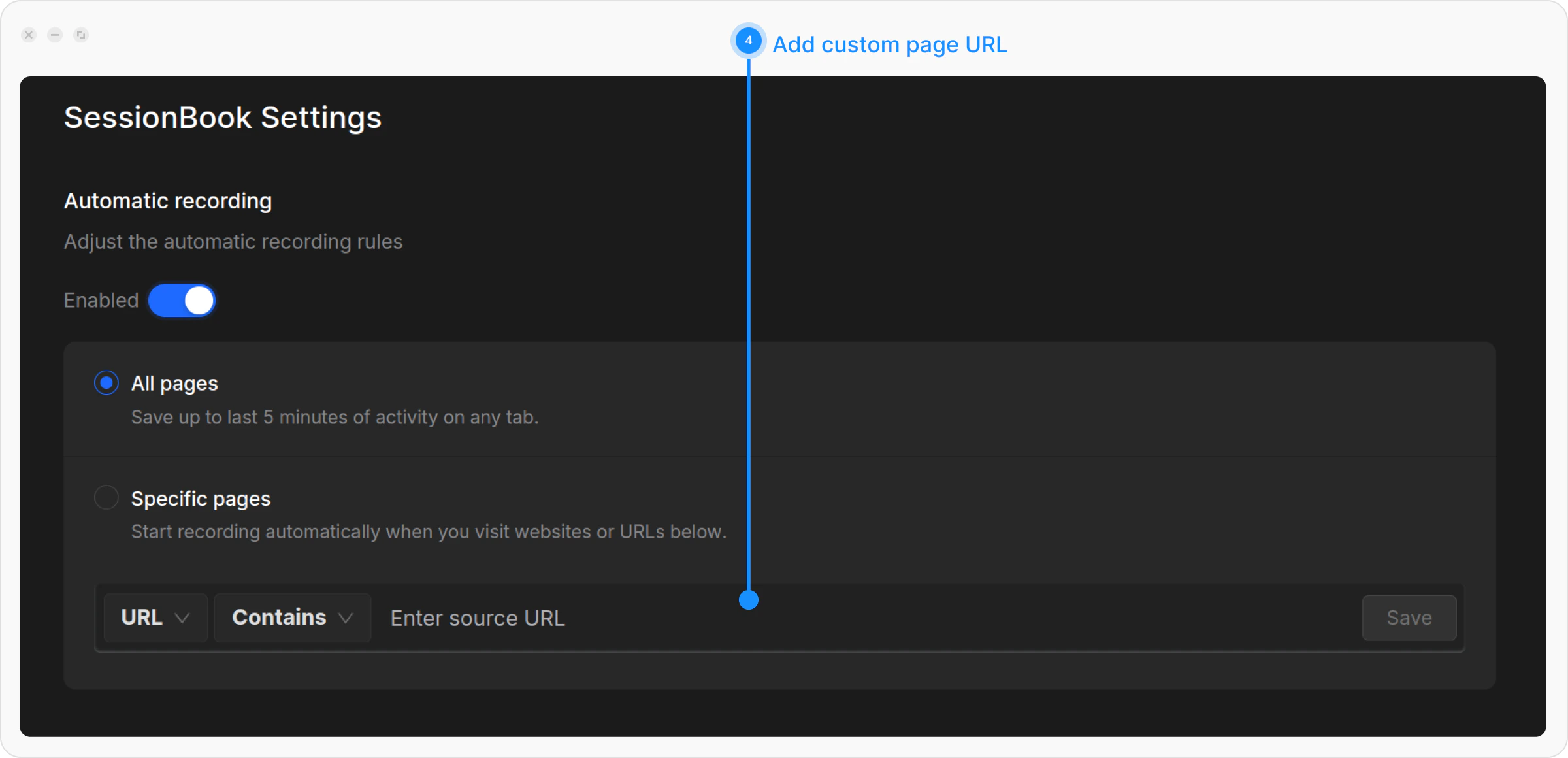 If selecting **Specific Pages**, add the source condition, then click **Save**. You can add multiple matching conditions by clicking the **Add Page Source** button.
Once everything is set up, you can **start recording a session**, which will capture all user actions like clicks, page changes, and mouse movements.
## Recording Sessions
To record a session, you can either use manual recording, where you start and stop recording sessions as needed, or auto-recording mode, which automatically captures sessions based on predefined settings.
If selecting **Specific Pages**, add the source condition, then click **Save**. You can add multiple matching conditions by clicking the **Add Page Source** button.
Once everything is set up, you can **start recording a session**, which will capture all user actions like clicks, page changes, and mouse movements.
## Recording Sessions
To record a session, you can either use manual recording, where you start and stop recording sessions as needed, or auto-recording mode, which automatically captures sessions based on predefined settings.
 ### Auto Recording Mode
This mode captures user interactions, such as clicks, page transitions, and mouse movements, with sessions capped at 5 minutes for optimal browser performance. Sessions are temporarily stored in local storage, discarding older activity for efficiency, until saved or shared.
Visit a webpage where a bug occurs or any webpage where you want to test it.
Click the **Requestly Interceptor** extension icon in your browser toolbar.
Pin Requestly Interceptor to your toolbar, for faster access.
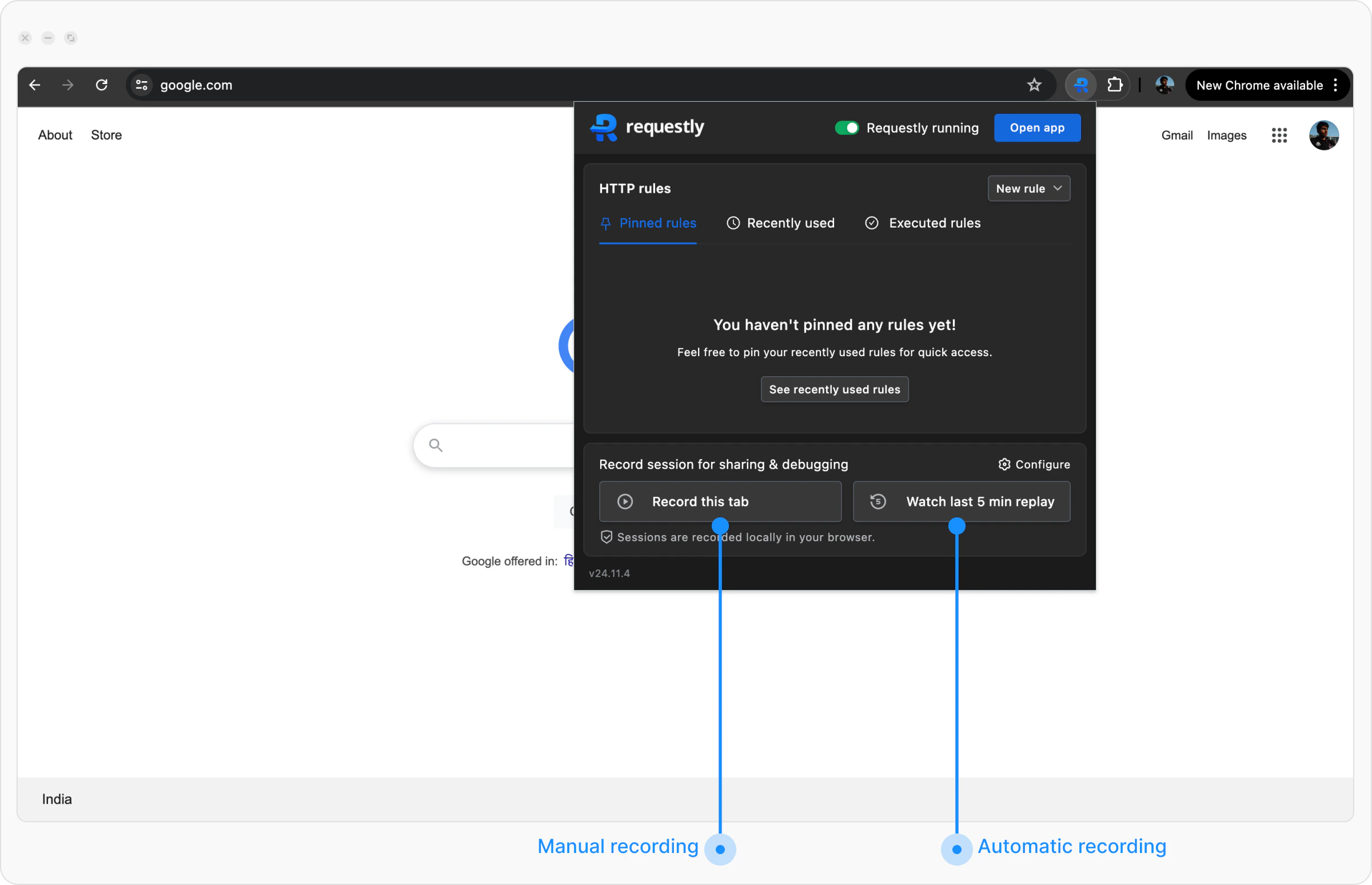
Click on **Watch Last 5 Min Replay** in the popup. If you have configured Requestly Interceptor to auto-record only selected domains then it will only be available on those domains.
The recorded session draft will open in a new browser tab. There you can either save it or share it with developers.
Sessions are stored in LocalStorage of your browser until you save them on the cloud or share them by creating a link.
### Manual Recording
If Session Recording hasn’t been pre-configured for a specific webpage, you can manually record sessions by following these steps.
Open the page that you want to record.
Open the **Requestly Interceptor** extension popup from your browser toolbar.
### Auto Recording Mode
This mode captures user interactions, such as clicks, page transitions, and mouse movements, with sessions capped at 5 minutes for optimal browser performance. Sessions are temporarily stored in local storage, discarding older activity for efficiency, until saved or shared.
Visit a webpage where a bug occurs or any webpage where you want to test it.
Click the **Requestly Interceptor** extension icon in your browser toolbar.
Pin Requestly Interceptor to your toolbar, for faster access.
Click on **Watch Last 5 Min Replay** in the popup. If you have configured Requestly Interceptor to auto-record only selected domains then it will only be available on those domains.
The recorded session draft will open in a new browser tab. There you can either save it or share it with developers.
Sessions are stored in LocalStorage of your browser until you save them on the cloud or share them by creating a link.
### Manual Recording
If Session Recording hasn’t been pre-configured for a specific webpage, you can manually record sessions by following these steps.
Open the page that you want to record.
Open the **Requestly Interceptor** extension popup from your browser toolbar.
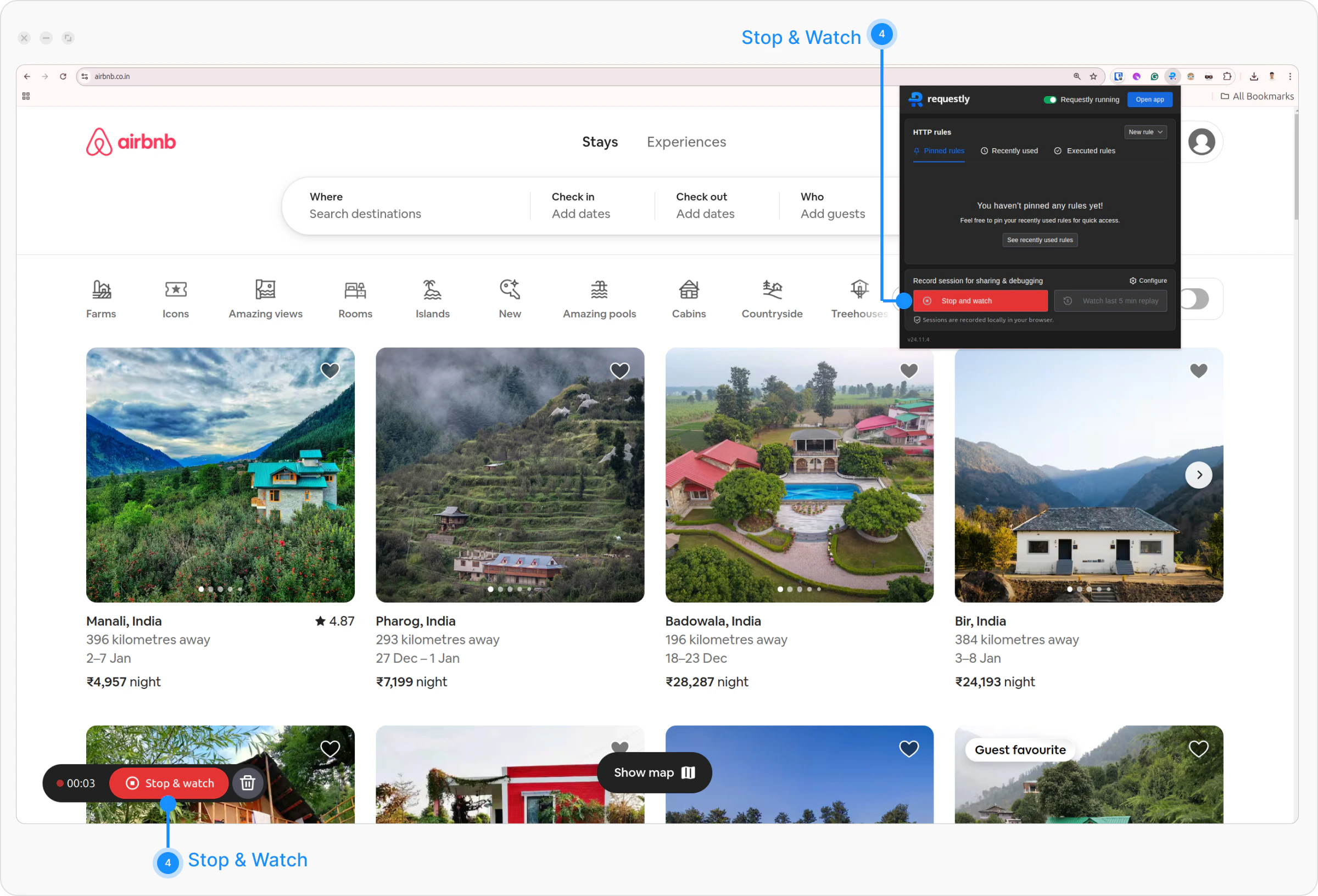
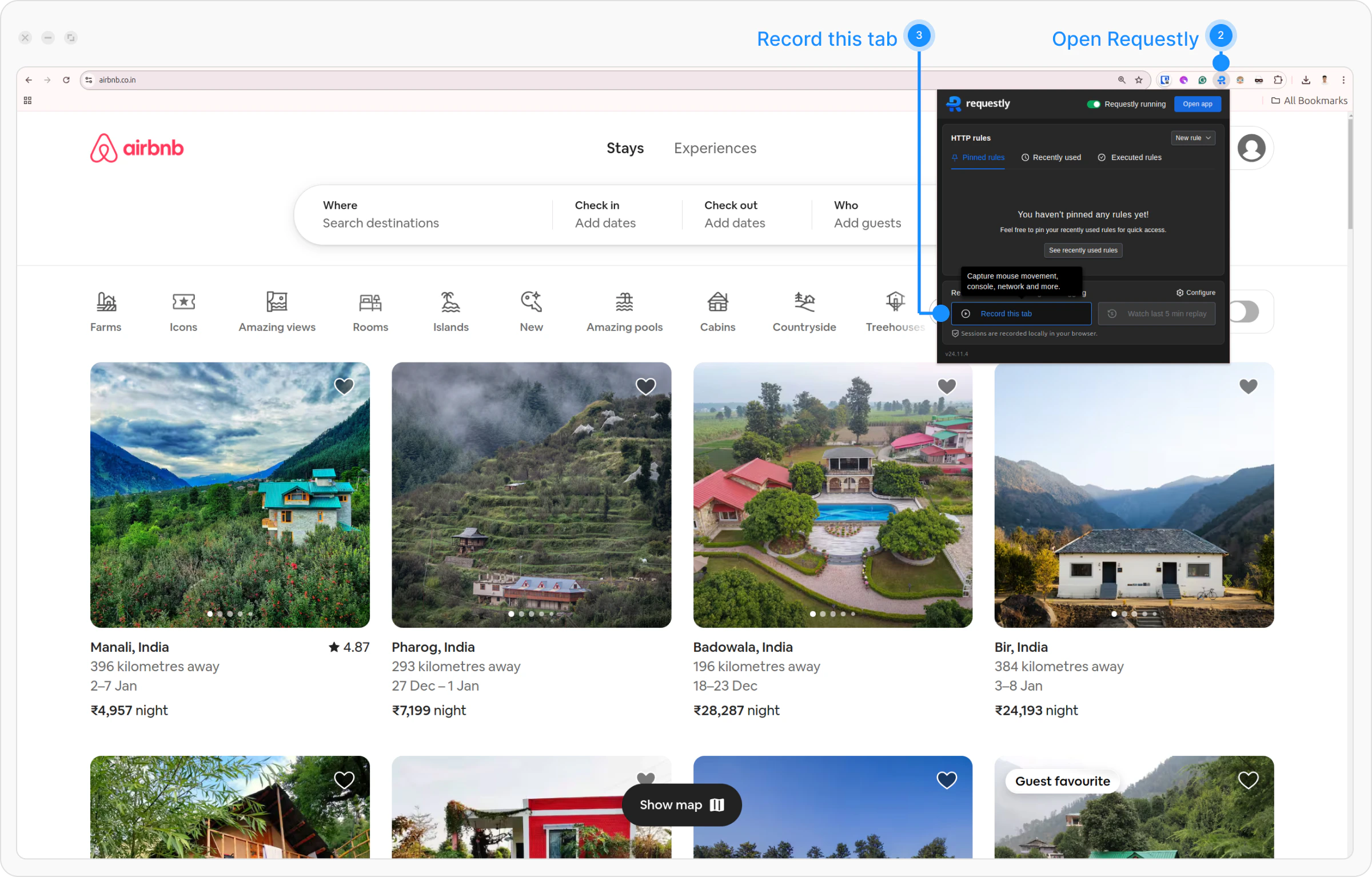 Click the **Record this tab** button to begin capturing session data.
Once you're finished, click the **Stop & Watch** button, either from the extension popup or from the Requestly Interceptor widget at the bottom-left corner.
Click the **Record this tab** button to begin capturing session data.
Once you're finished, click the **Stop & Watch** button, either from the extension popup or from the Requestly Interceptor widget at the bottom-left corner.
 ## Saving a Session
After recording the session, it enters a draft state, allowing you to review and make edits. You can trim the video, add a title and description, and make any other adjustments before saving it. During this time, the session is stored in the local storage of your browser only.
## Saving a Session
After recording the session, it enters a draft state, allowing you to review and make edits. You can trim the video, add a title and description, and make any other adjustments before saving it. During this time, the session is stored in the local storage of your browser only.
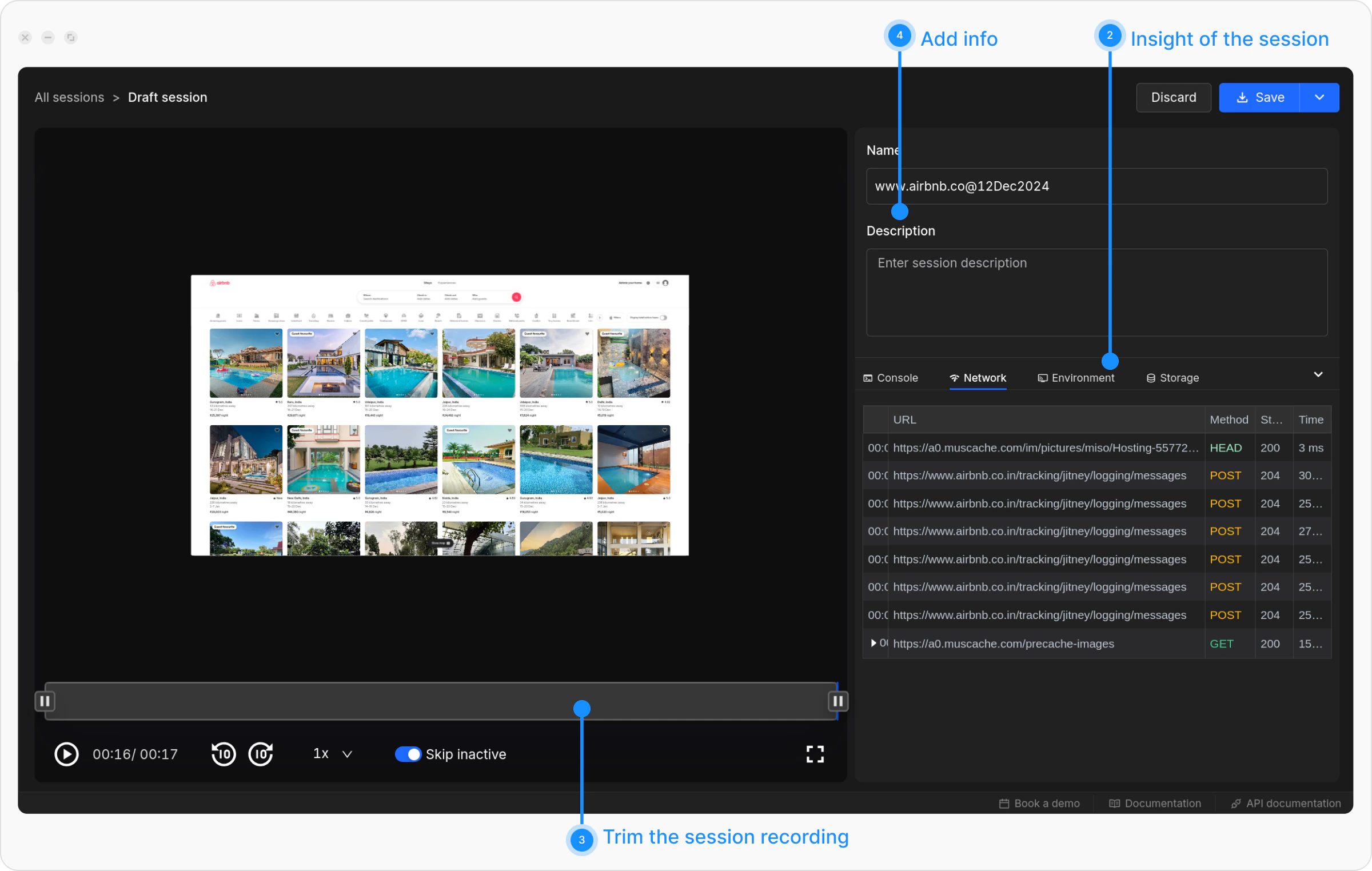 Open the session in the extension popup.
Replay the video and review details such as:
* Console logs
* Network logs
* Environment details
* Local storage changes
Optionally, you can trim the video to skip irrelevant portions.
Add a description to explain the bug or include additional information.
Click **Save Recording** to:
* Save online on the Requestly Interceptor cloud.
* Download locally if needed.
Open the session in the extension popup.
Replay the video and review details such as:
* Console logs
* Network logs
* Environment details
* Local storage changes
Optionally, you can trim the video to skip irrelevant portions.
Add a description to explain the bug or include additional information.
Click **Save Recording** to:
* Save online on the Requestly Interceptor cloud.
* Download locally if needed.
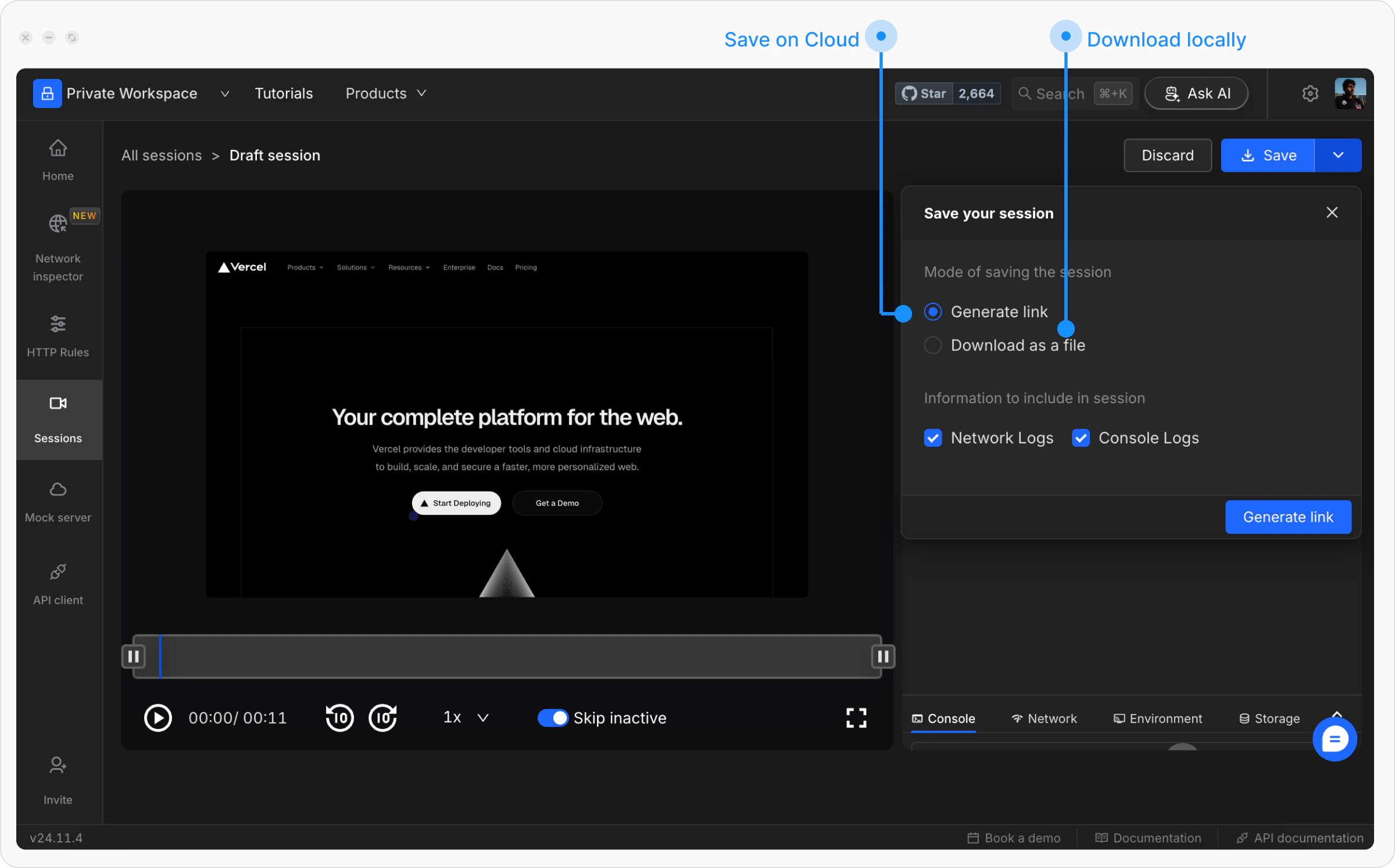 Before saving, use the checkboxes to include or exclude **network logs** and **console logs** as per your needs. Request headers are not stored for security reasons, as they generally contain authentication information.
## Sharing a Session
Once a recording is saved, you can share it with your team using different access controls:
* **Private**
* **Anyone with the Link**
* **Only with Specific People**
For more detailed steps on how to share and manage access, visit the Access Control section.
Before saving, use the checkboxes to include or exclude **network logs** and **console logs** as per your needs. Request headers are not stored for security reasons, as they generally contain authentication information.
## Sharing a Session
Once a recording is saved, you can share it with your team using different access controls:
* **Private**
* **Anyone with the Link**
* **Only with Specific People**
For more detailed steps on how to share and manage access, visit the Access Control section.
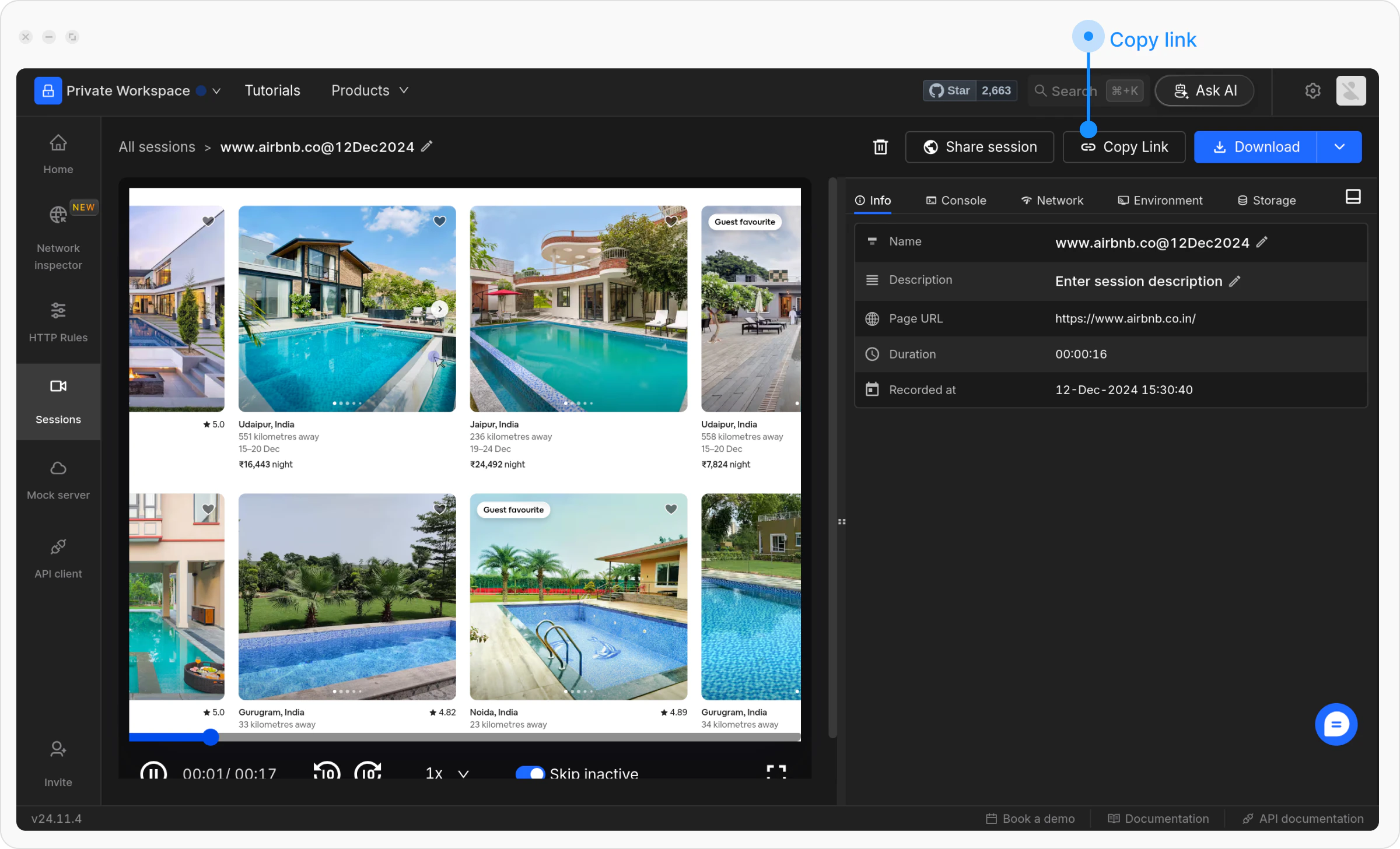 Click the **Copy Link** to get the shareable URL.
If sharing with specific people, they’ll receive an email notification with the link.
Click the **Copy Link** to get the shareable URL.
If sharing with specific people, they’ll receive an email notification with the link.