> ## Documentation Index
> Fetch the complete documentation index at: https://interceptor-docs.requestly.com/llms.txt
> Use this file to discover all available pages before exploring further.
# Redirect Request
> Learn how to use Requestly Interceptor's Redirect Rule for testing, debugging, and development, with step-by-step guides and use cases.
***
The **Redirect Request Rule** in Requestly Interceptor allows you to seamlessly redirect HTTP requests to a different URL or resource. This is particularly useful for testing, debugging, or even for creating workarounds during development.
## Why Use the Redirect Rule?
1. **Redirect Production to Local Environment:** Map your production scripts or APIs to your local running code and test your local code directly on production sites without deployment.\
Learn more →
2. **Test API version changes**: If a new API version is available, you can test backward compatibility by setting up a redirect rule to point all URLs from the old version to the new one. This lets you test the upgrade without modifying your code.\
Learn more →
3. **Swap Javascript from production to staging/dev environment:** Test your dev implementation in tag manager scripts like Adobe DTM, Tealium Tag, and Google Tag Manager Containers before pushing them live on client websites.
Learn more →
 ## **How to Configure the Redirect Rule**
Navigate to the HTTP Rules tab in the web or desktop app. Click on `+ New Rule` and select `Redirect Rule` from the options.
## **How to Configure the Redirect Rule**
Navigate to the HTTP Rules tab in the web or desktop app. Click on `+ New Rule` and select `Redirect Rule` from the options.
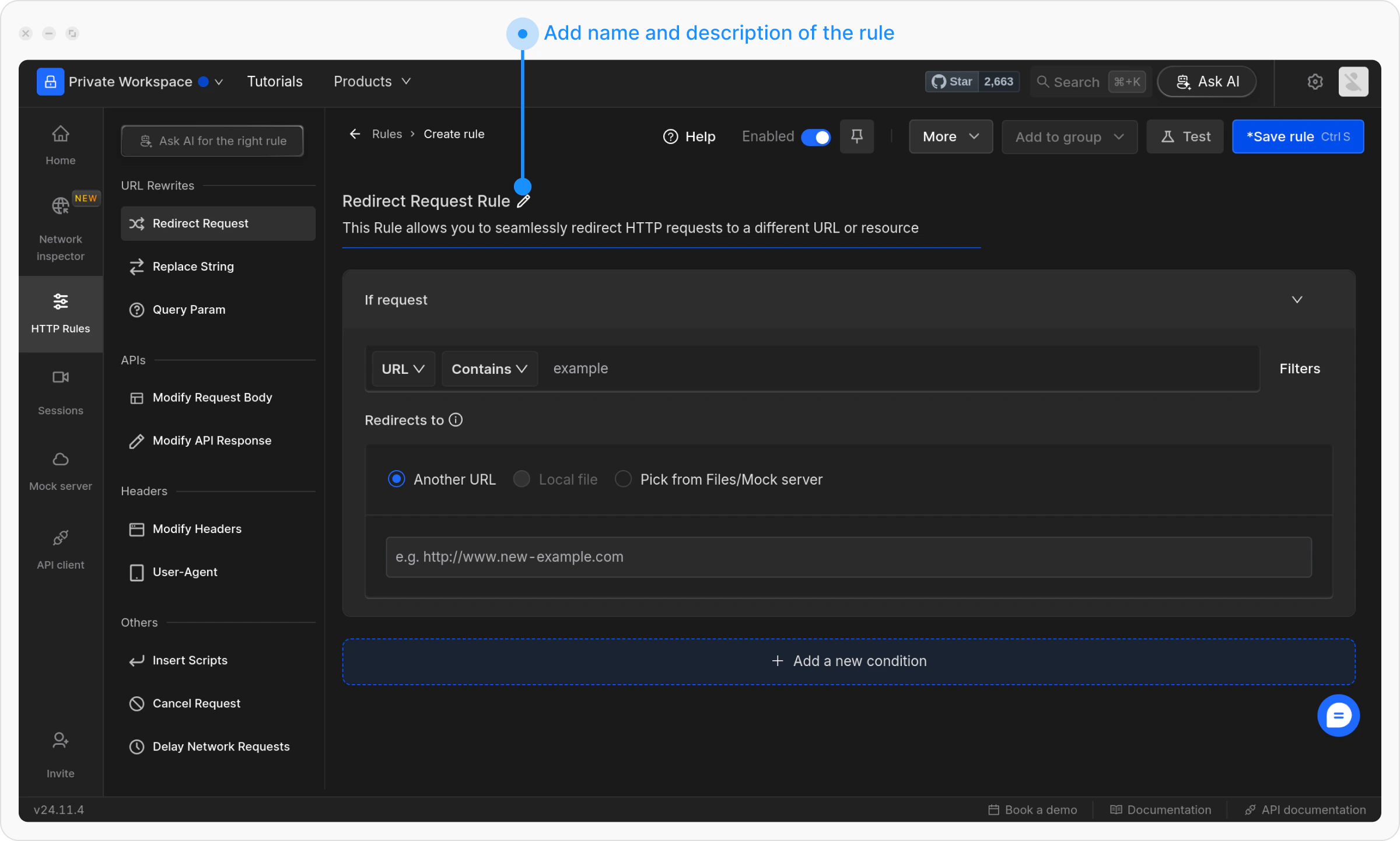
 Provide a **descriptive name** for the rule to keep your setup organised. Optionally, add a **brief description** explaining its purpose for easier identification later.
 Define where the rule should be applied by specifying criteria such as **URL**, **Host**, or **Path**. You can choose from options like **Regex**, **Contains**, **Wildcard**, or **Equals**, or use Advance Filters for more precise conditions.
For more details on source conditions, [read this guide](/http-rules/advanced-usage/advance-targeting).
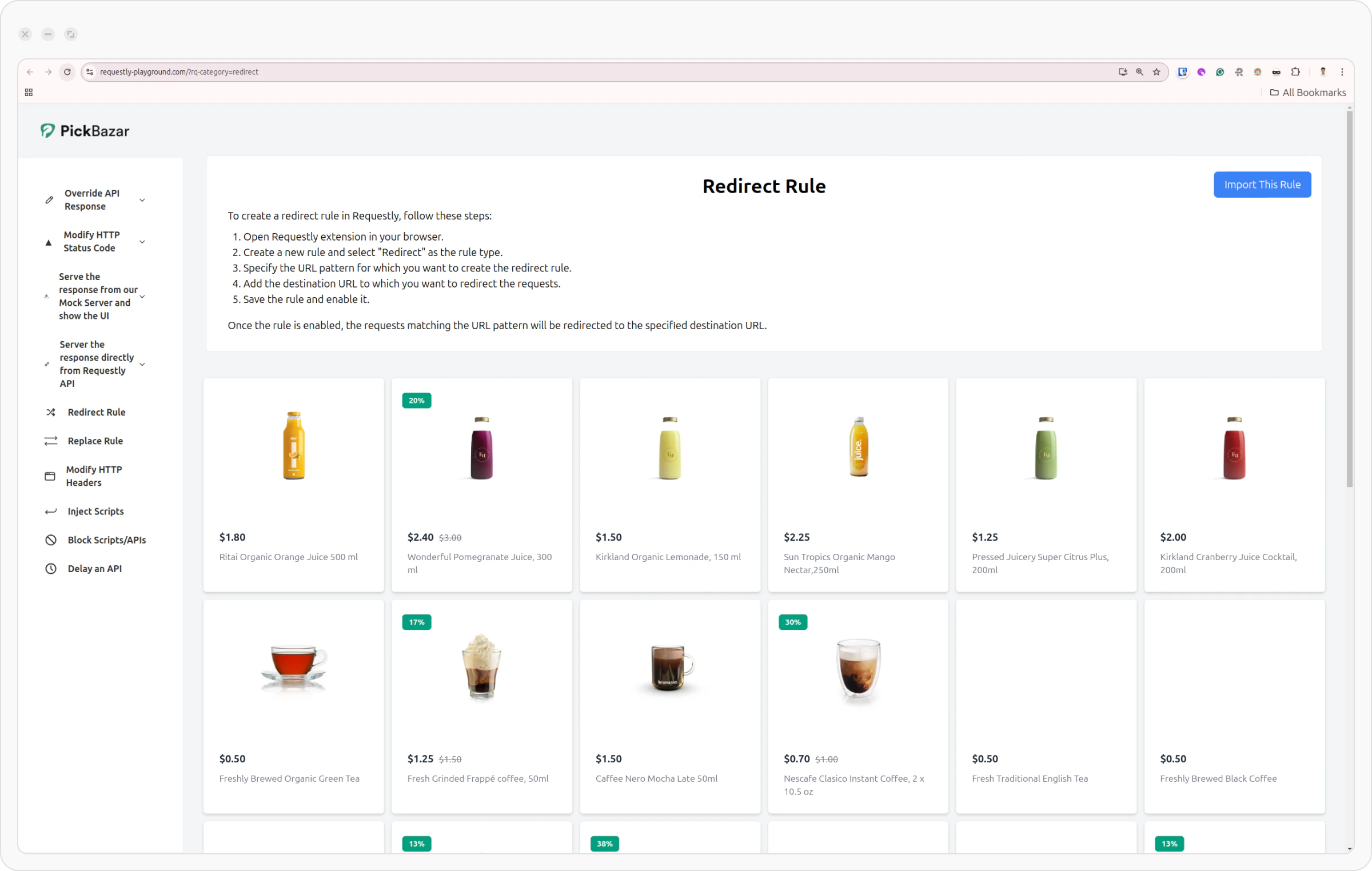
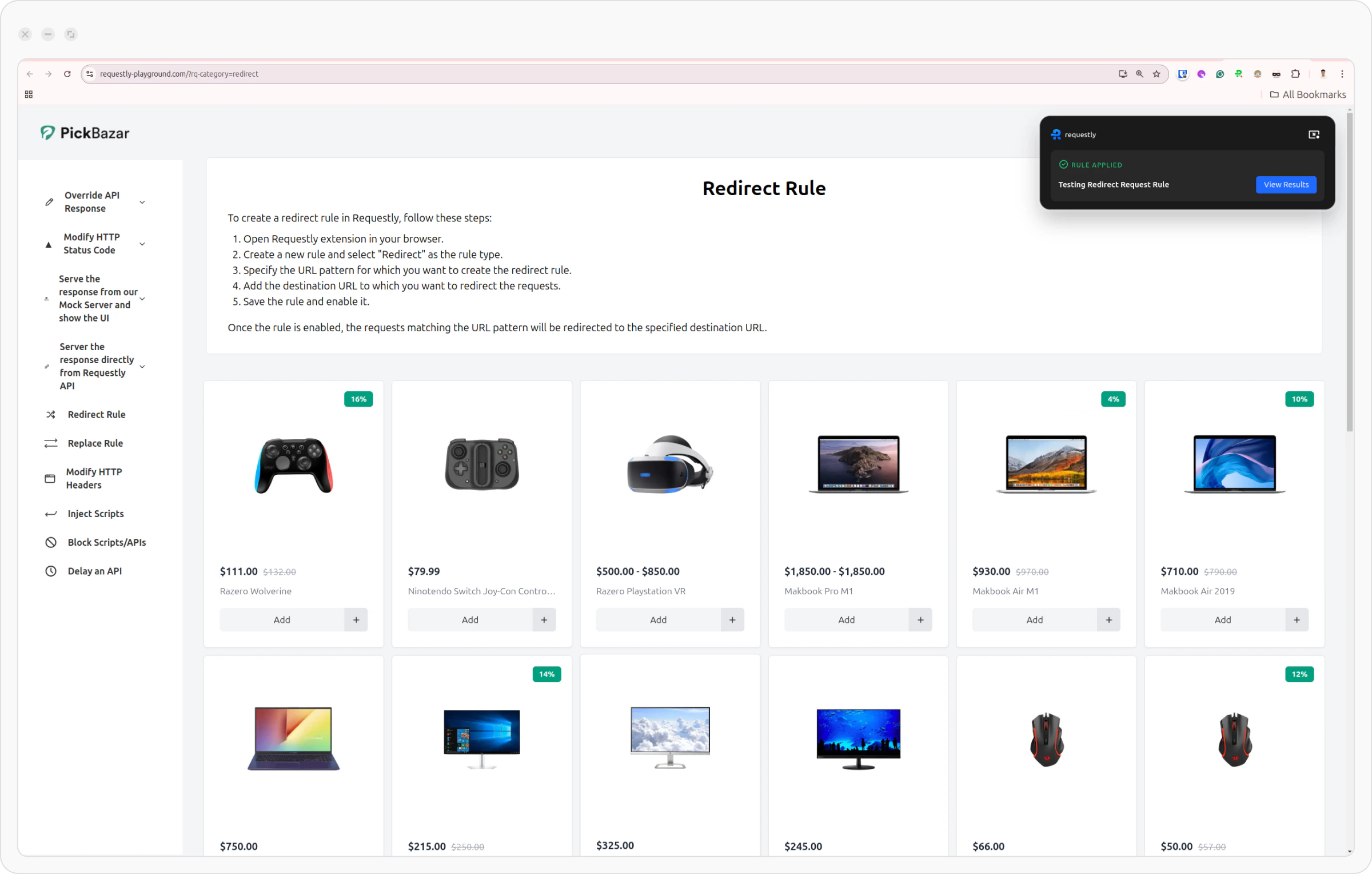
For this example, we are using the Requestly Interceptor Playground (a demo eCommerce Store) to demonstrate the `Redirect Request` rule. This gives you a near-live experience of how the rule works.
In this case, we are targeting API requests that fetch data for the page, specifically those with query parameters like `type.slug:bakery`.
* **Condition Type:** URL
* **Operator:** Contains
* **Value:** `https://rest.requestly-playground.com/api/products?searchJoin=and&with=type%3Bauthor&limit=30&language=en&search=type.slug:bakery%3Bstatus:publish`
Define where the rule should be applied by specifying criteria such as **URL**, **Host**, or **Path**. You can choose from options like **Regex**, **Contains**, **Wildcard**, or **Equals**, or use Advance Filters for more precise conditions.
For more details on source conditions, [read this guide](/http-rules/advanced-usage/advance-targeting).
For this example, we are using the Requestly Interceptor Playground (a demo eCommerce Store) to demonstrate the `Redirect Request` rule. This gives you a near-live experience of how the rule works.
In this case, we are targeting API requests that fetch data for the page, specifically those with query parameters like `type.slug:bakery`.
* **Condition Type:** URL
* **Operator:** Contains
* **Value:** `https://rest.requestly-playground.com/api/products?searchJoin=and&with=type%3Bauthor&limit=30&language=en&search=type.slug:bakery%3Bstatus:publish`
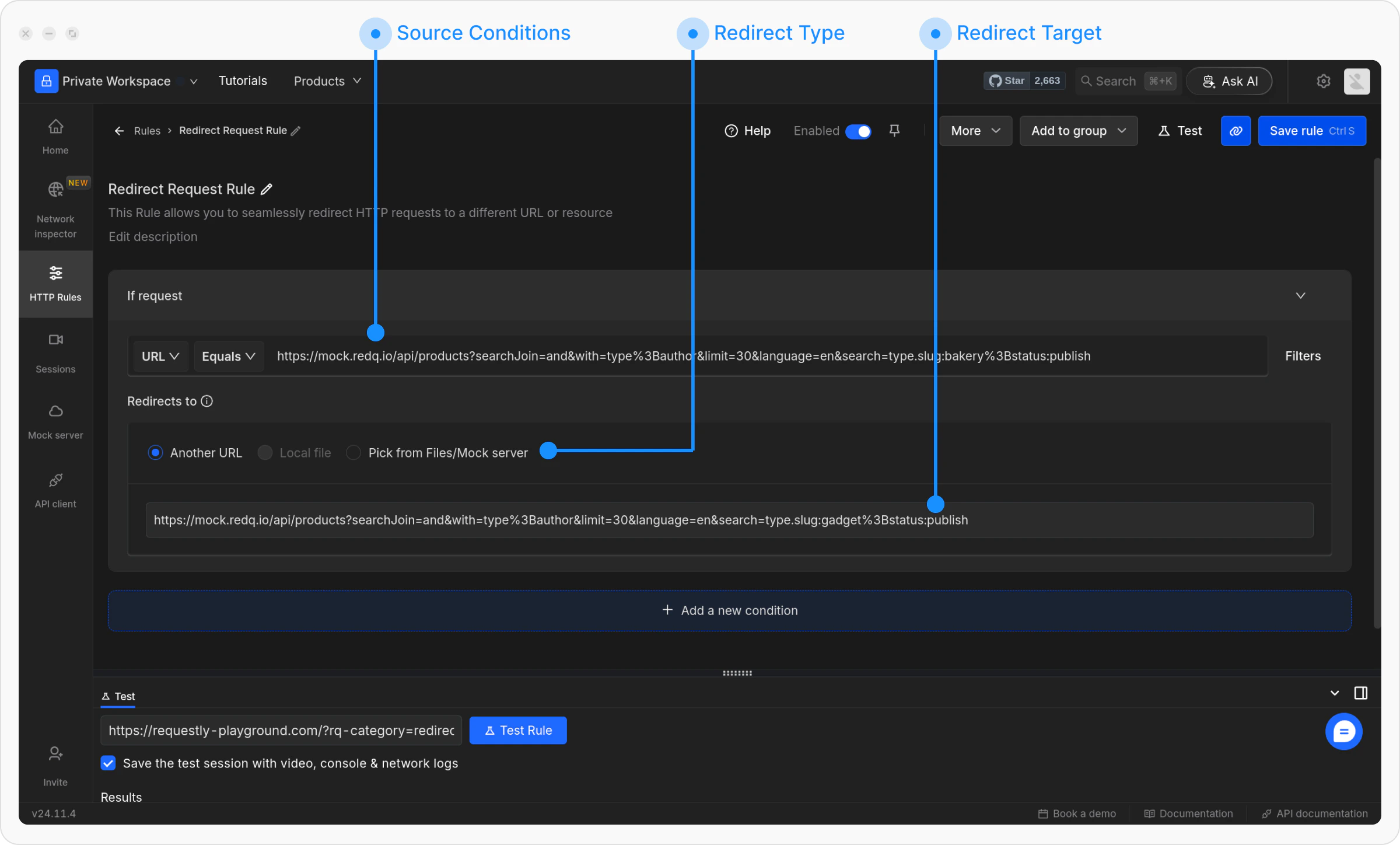 Set the target URL to which requests should be redirected. You can use the following options:
To redirect requests from one API endpoint to another, set the following:
* **Source URL**: `https://rest.requestly-playground.com/api/products?searchJoin=and&with=type%3Bauthor&limit=30&language=en&search=type.slug:bakery%3Bstatus:publish`
* **Redirect Target**: `https://rest.requestly-playground.com/api/products?searchJoin=and&with=type%3Bauthor&limit=30&language=en&search=type.slug:gadget%3Bstatus:publish`
In this case, we are changing the query parameter `type.slug:bakery` in the **Source URL** to `type.slug:gadget` in the **Redirect Target**. This redirects requests for bakery products to a new endpoint for tech products.
Set the target URL to which requests should be redirected. You can use the following options:
To redirect requests from one API endpoint to another, set the following:
* **Source URL**: `https://rest.requestly-playground.com/api/products?searchJoin=and&with=type%3Bauthor&limit=30&language=en&search=type.slug:bakery%3Bstatus:publish`
* **Redirect Target**: `https://rest.requestly-playground.com/api/products?searchJoin=and&with=type%3Bauthor&limit=30&language=en&search=type.slug:gadget%3Bstatus:publish`
In this case, we are changing the query parameter `type.slug:bakery` in the **Source URL** to `type.slug:gadget` in the **Redirect Target**. This redirects requests for bakery products to a new endpoint for tech products.
 You can also import this rule and apply it directly by using this shared list**.**
> The local file option is available only in the [desktop app](https://requestly.com/downloads).
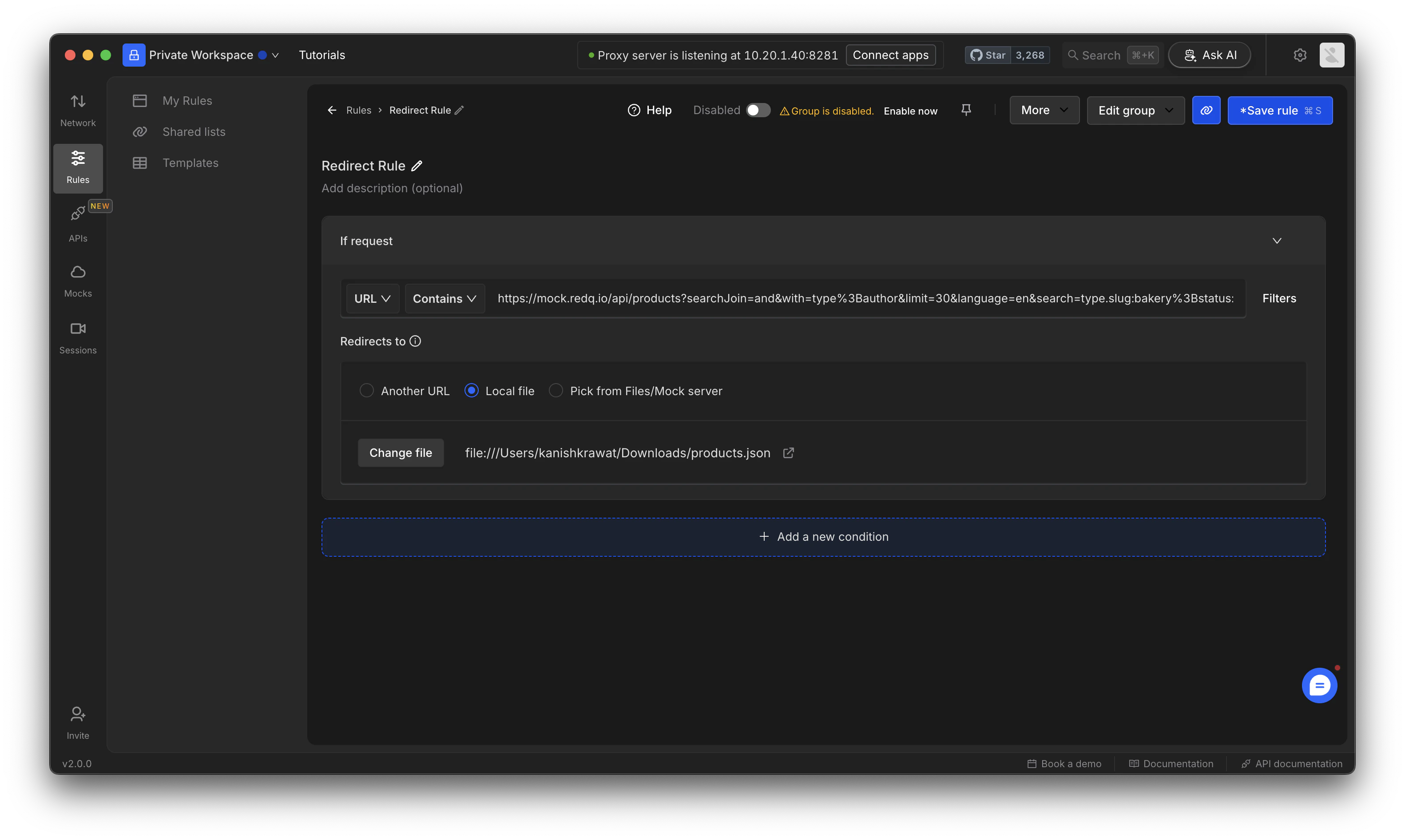
To redirect an API request to a local file, choose **File from your device** as the redirect target. This will serve the response from your local file instead of the live server.
You can also import this rule and apply it directly by using this shared list**.**
> The local file option is available only in the [desktop app](https://requestly.com/downloads).
To redirect an API request to a local file, choose **File from your device** as the redirect target. This will serve the response from your local file instead of the live server.
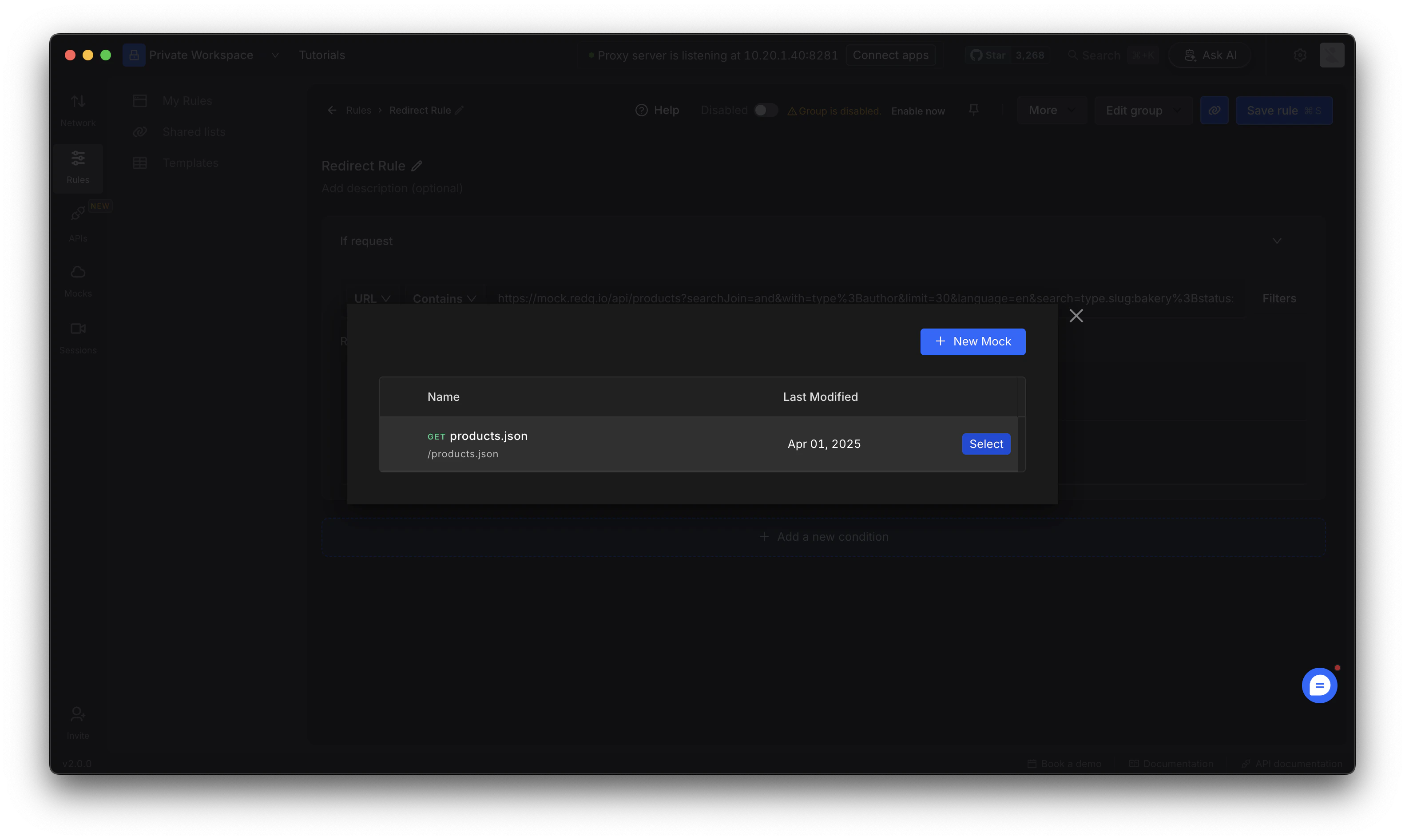
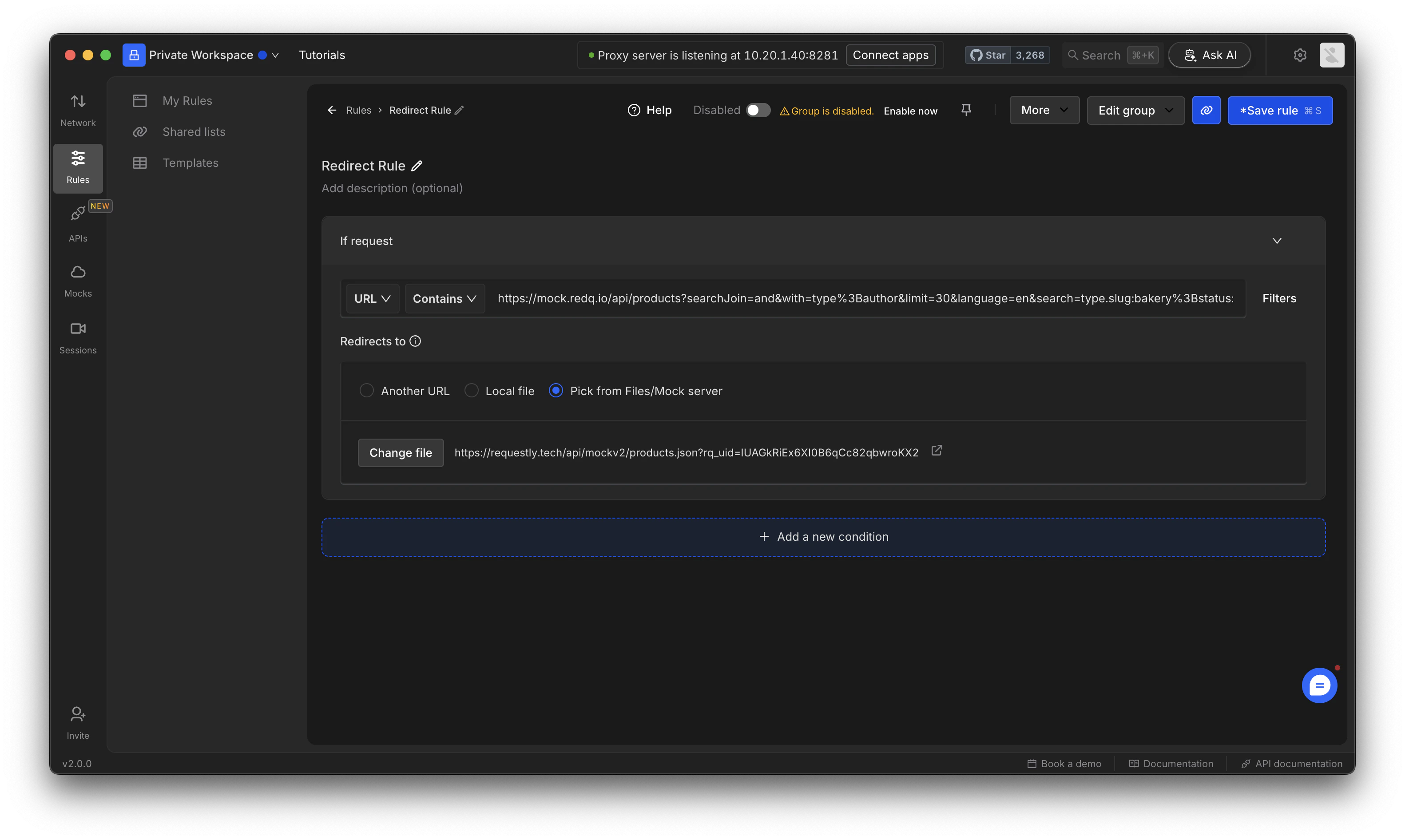
 You can redirect API requests to a custom response hosted on **Requestly Interceptor’s File Server**.
Choose from an existing **JSON file** or upload a new one.
You can redirect API requests to a custom response hosted on **Requestly Interceptor’s File Server**.
Choose from an existing **JSON file** or upload a new one.
 Once selected, the request will return the hosted response instead of hitting the live server.
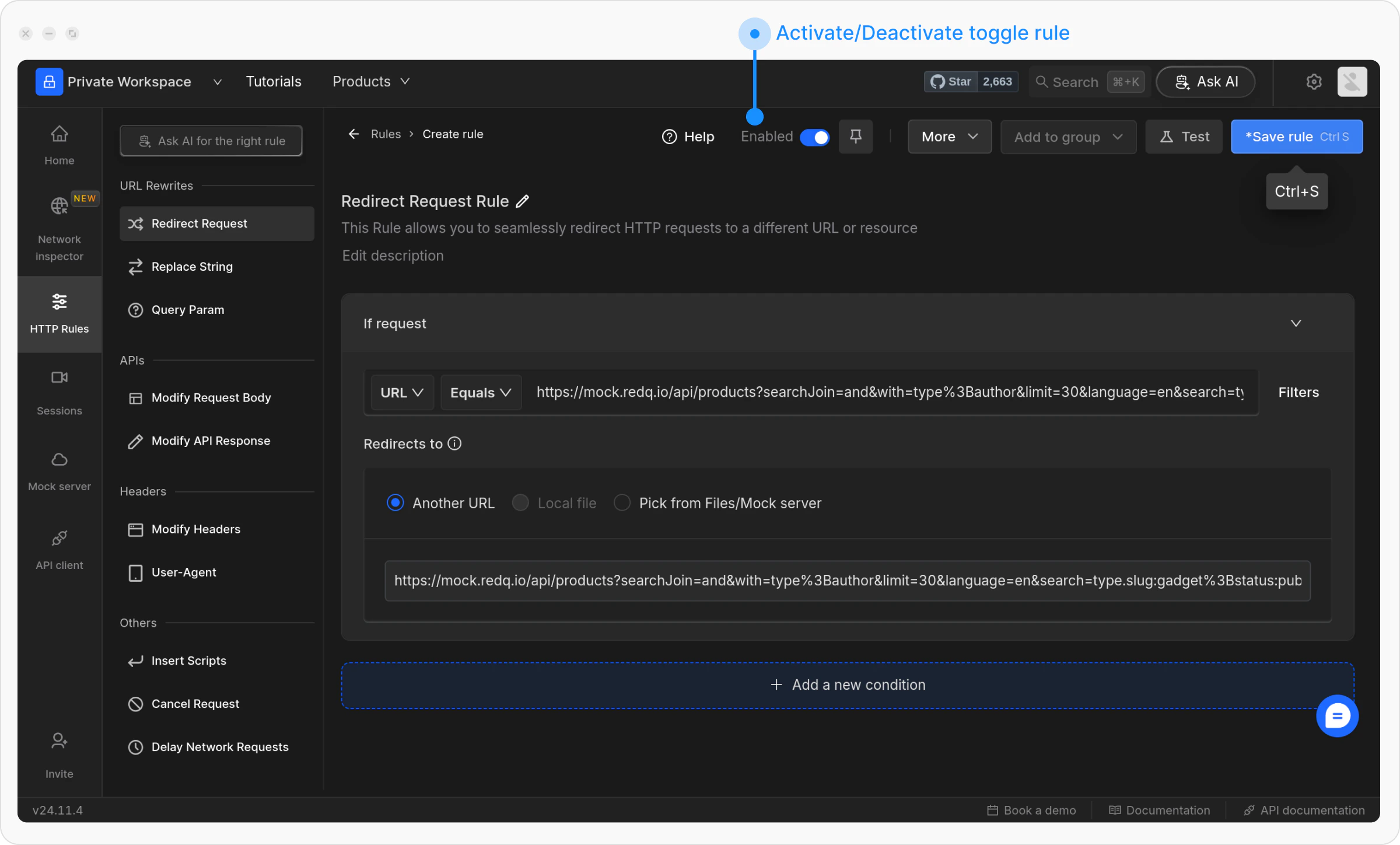
 Once you are satisfied with your configuration, click `Save` to store the rule. After saving, make sure to toggle the rule `ON` to activate it. This will apply the rule and ensure it works as expected.
 To verify that the rule is working, click the `Test button`, enter a relevant URL, and then click `Test Rule`.
You can use the following URL to test the redirection: `https://www.requestly-playground.com/?rq-category=redirect`.
To verify that the rule is working, click the `Test button`, enter a relevant URL, and then click `Test Rule`.
You can use the following URL to test the redirection: `https://www.requestly-playground.com/?rq-category=redirect`.
 There are multiple ways to validate if a rule is applied or not, learn more about how to `validate rule execution` .