> ## Documentation Index
> Fetch the complete documentation index at: https://interceptor-docs.requestly.com/llms.txt
> Use this file to discover all available pages before exploring further.
# Delay Network Requests
> Learn how to configure HTTP rules to simulate network latency for testing slow connections
***
The **Delay Network Request** rule in Requestly Interceptor enables you to simulate network latency on HTTP requests for testing and debugging purposes. By adding delays, you can observe how your application behaves under slow network conditions.
## Why Use the Delay Network Requests?
* **Test Slow Network Scenarios:** Understand how your application handles slow connections, especially for users in remote areas.
* **Test API Latency:** Evaluate how your app behaves when one or more APIs respond slowly, ensuring appropriate error handling and fallback mechanisms.
* **Identify Race Conditions:** Check if any race conditions exist when resource X gets loaded before or after resource Y.
* **UI/UX Testing:** Verify if the user interface provides appropriate feedback (like loaders or error messages) during delays.
 ## How to Configure the Rule
Navigate to the HTTP Rules tab in the web or desktop app. Click on `+ New Rule` and select `Delay Network Requests` from the options.
## How to Configure the Rule
Navigate to the HTTP Rules tab in the web or desktop app. Click on `+ New Rule` and select `Delay Network Requests` from the options.
 Provide a **descriptive name** for the rule to keep your setup organized. Optionally, add a **brief description** explaining its purpose for easier identification later.
 Define where the rule should be applied by specifying criteria such as **URL**, **Host**, or **Path**. You can choose from options like **Regex**, **Contains**, **Wildcard**, or **Equals**, or use **Advance Filters** for more precise conditions.
For more details on source conditions, [**read this guide**.](/http-rules/advanced-usage/advance-targeting)
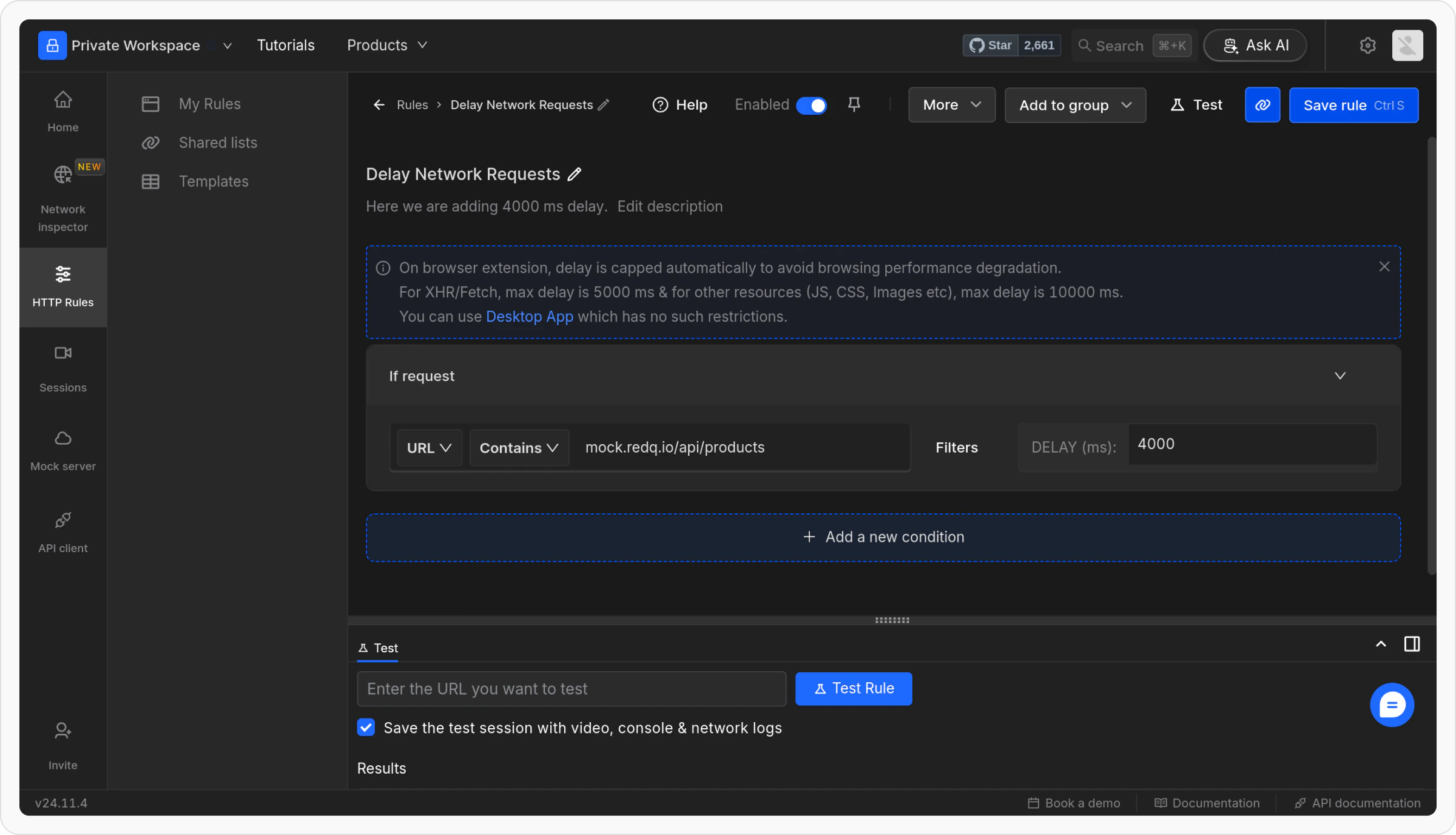
To apply a rule to an API fetching product data on [our playground website](https://www.requestly-playground.com/), use the following configuration:
* **Condition Type:** URL
* **Operator:** Contains
* **Value:** `rest.requestly-playground.com/api/products`
This example targets the product data API of our playground website, [`https://www.requestly-playground.com/`](https://www.requestly-playground.com/)**.**
Define where the rule should be applied by specifying criteria such as **URL**, **Host**, or **Path**. You can choose from options like **Regex**, **Contains**, **Wildcard**, or **Equals**, or use **Advance Filters** for more precise conditions.
For more details on source conditions, [**read this guide**.](/http-rules/advanced-usage/advance-targeting)
To apply a rule to an API fetching product data on [our playground website](https://www.requestly-playground.com/), use the following configuration:
* **Condition Type:** URL
* **Operator:** Contains
* **Value:** `rest.requestly-playground.com/api/products`
This example targets the product data API of our playground website, [`https://www.requestly-playground.com/`](https://www.requestly-playground.com/)**.**
 You can also import this rule and apply it directly by using this [**shared list**](https://app.requestly.io/rules/shared-lists/viewer/ba070616357f468593a2b16131e7ccd0-Delay-API-Response).
Specify the delay duration in milliseconds. For example, enter `4000` to introduce a 4-second delay.
**Delay Capping**, In the browser extension, delays are capped to prevent performance issues. The maximum delay is **5000 ms** for XHR/Fetch requests and **10000 ms** for other resources (JS, CSS, images, etc.). The Desktop App has no such restrictions.
You can also import this rule and apply it directly by using this [**shared list**](https://app.requestly.io/rules/shared-lists/viewer/ba070616357f468593a2b16131e7ccd0-Delay-API-Response).
Specify the delay duration in milliseconds. For example, enter `4000` to introduce a 4-second delay.
**Delay Capping**, In the browser extension, delays are capped to prevent performance issues. The maximum delay is **5000 ms** for XHR/Fetch requests and **10000 ms** for other resources (JS, CSS, images, etc.). The Desktop App has no such restrictions.
 Once you are satisfied with your configuration, click **Save** to store the rule. After saving, make sure to toggle the rule **ON** to activate it. This will apply the rule and ensure it works as expected.
 To ensure the rule is working correctly, click the **Test** button and enter the URL of the page where you want to apply this rule.
 There are multiple ways to validate if a rule is applied or not, learn more about how to **validate rule execution****.**
This will open the webpage in a new tab, with a widget showing the status of applier rules.
There are multiple ways to validate if a rule is applied or not, learn more about how to **validate rule execution****.**
This will open the webpage in a new tab, with a widget showing the status of applier rules.
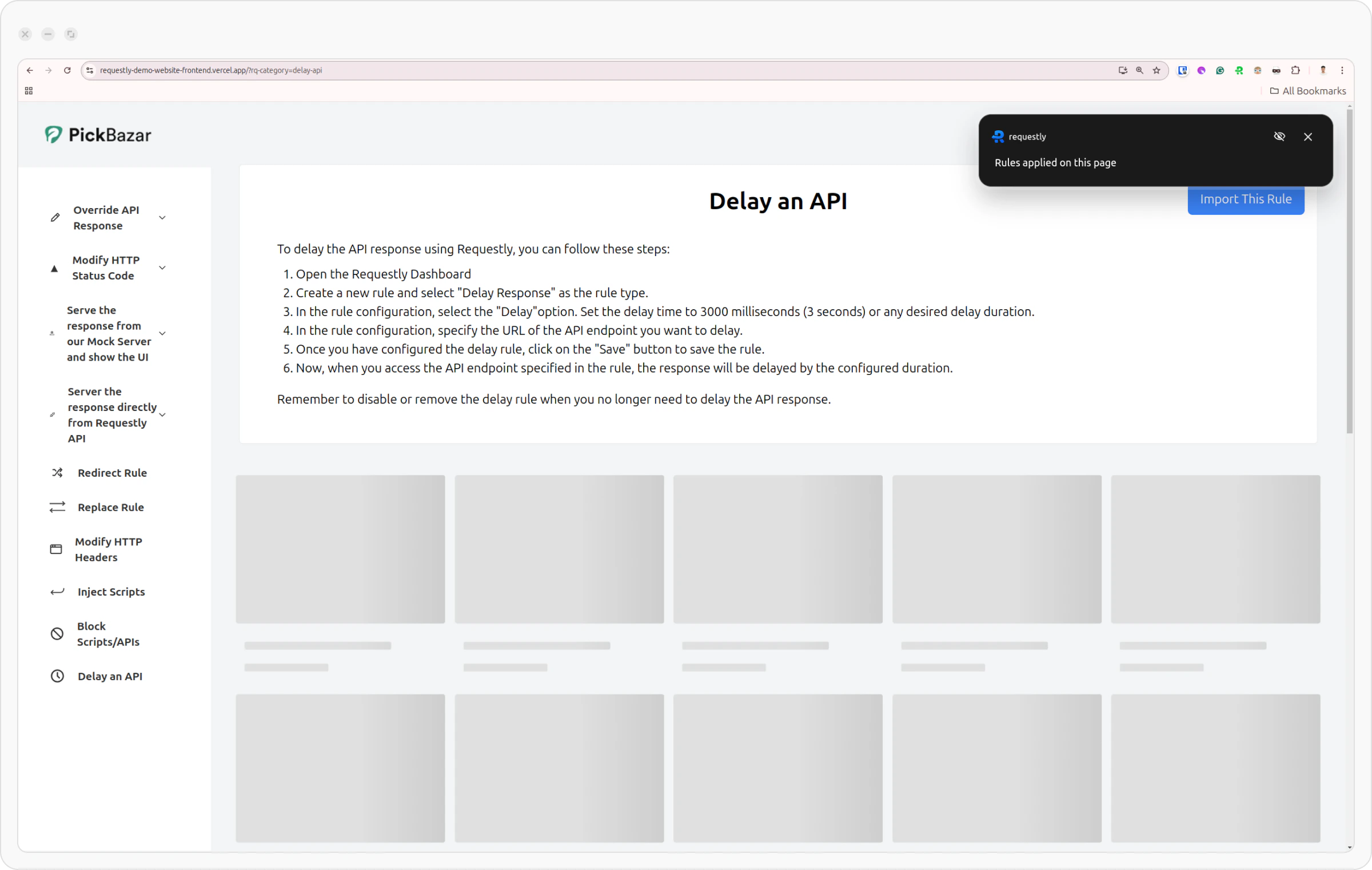 Here, You can see the requests are delayed, as the `Queued At`/`Started At` time in the Network tab goes up by 4 seconds (4000 ms).
