> ## Documentation Index
> Fetch the complete documentation index at: https://interceptor-docs.requestly.com/llms.txt
> Use this file to discover all available pages before exploring further.
# Test This Rule
> Validate and debug HTTP rules in real-time using Requestly Interceptor's "Test This Rule" feature with session recording and detailed test reports.
***
The **Test This Rule** feature in the HTTP Rules section allows users to validate their rule configurations by applying them to a specific webpage or endpoint in real-time. This feature is especially useful for debugging, ensuring rules behave as expected before deploying them broadly.
## Why Use the Test This Rule Feature?
1. **Real-Time Feedback**: Instantly see how your rule affects the target webpage or API endpoint.
2. **Debugging and Optimisation**: Identify and resolve issues in your configurations before wider application.
## How to Use the Test This Rule Feature
Before using the **Test This Rule** feature, ensure that you have a configured rule ready. This can be any rule created under the HTTP Rules section, such as modifying requests, delaying network requests, or redirecting URLs. Save and activate the rule.
Tip: After saving the rule, the test panel opens automatically.
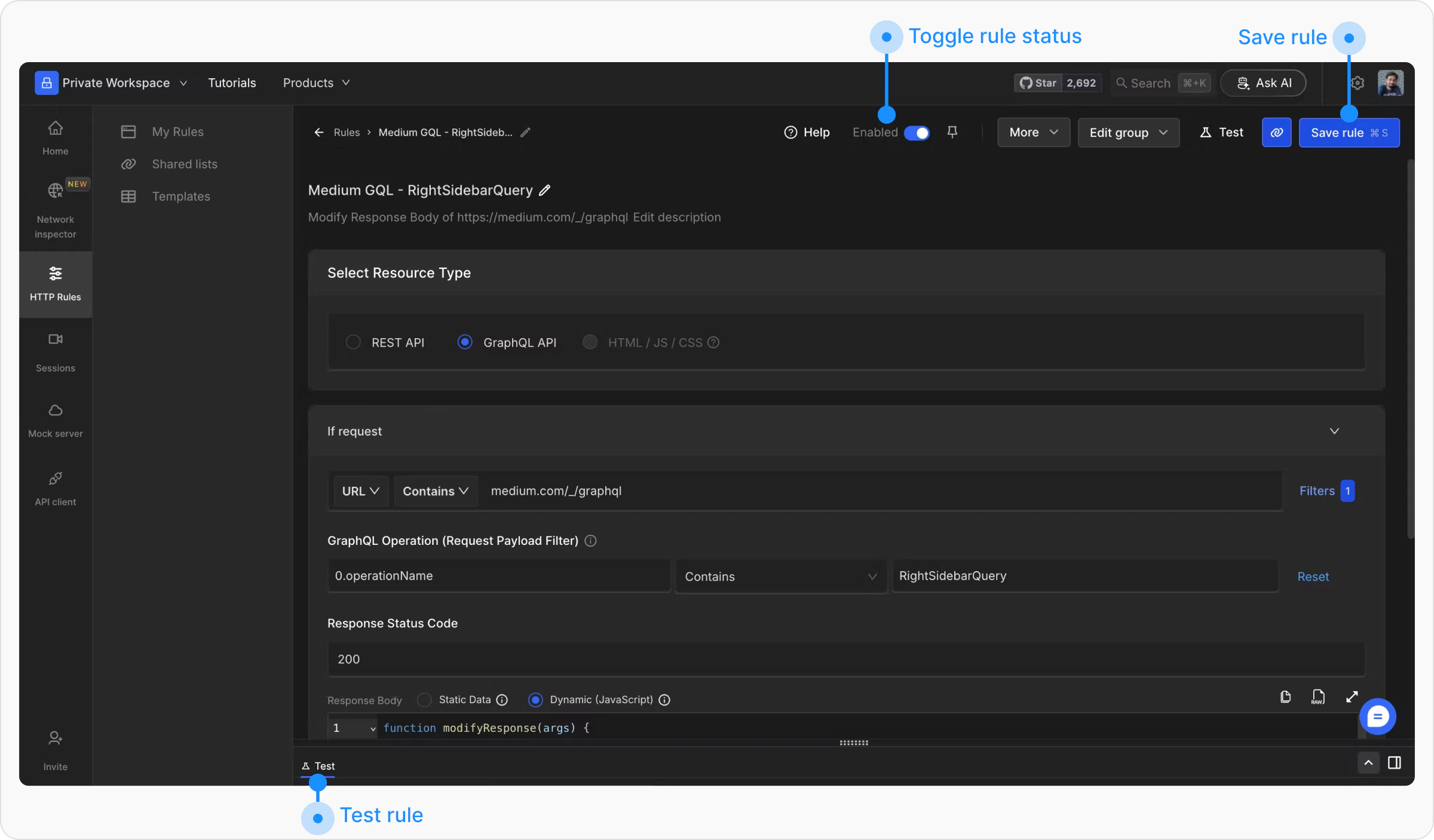 Open the test rule panel using the `Test` button located next to the "Add to Group" dropdown. Here, you’ll find an input field to enter the URL of the page or endpoint where you want to apply the rule.
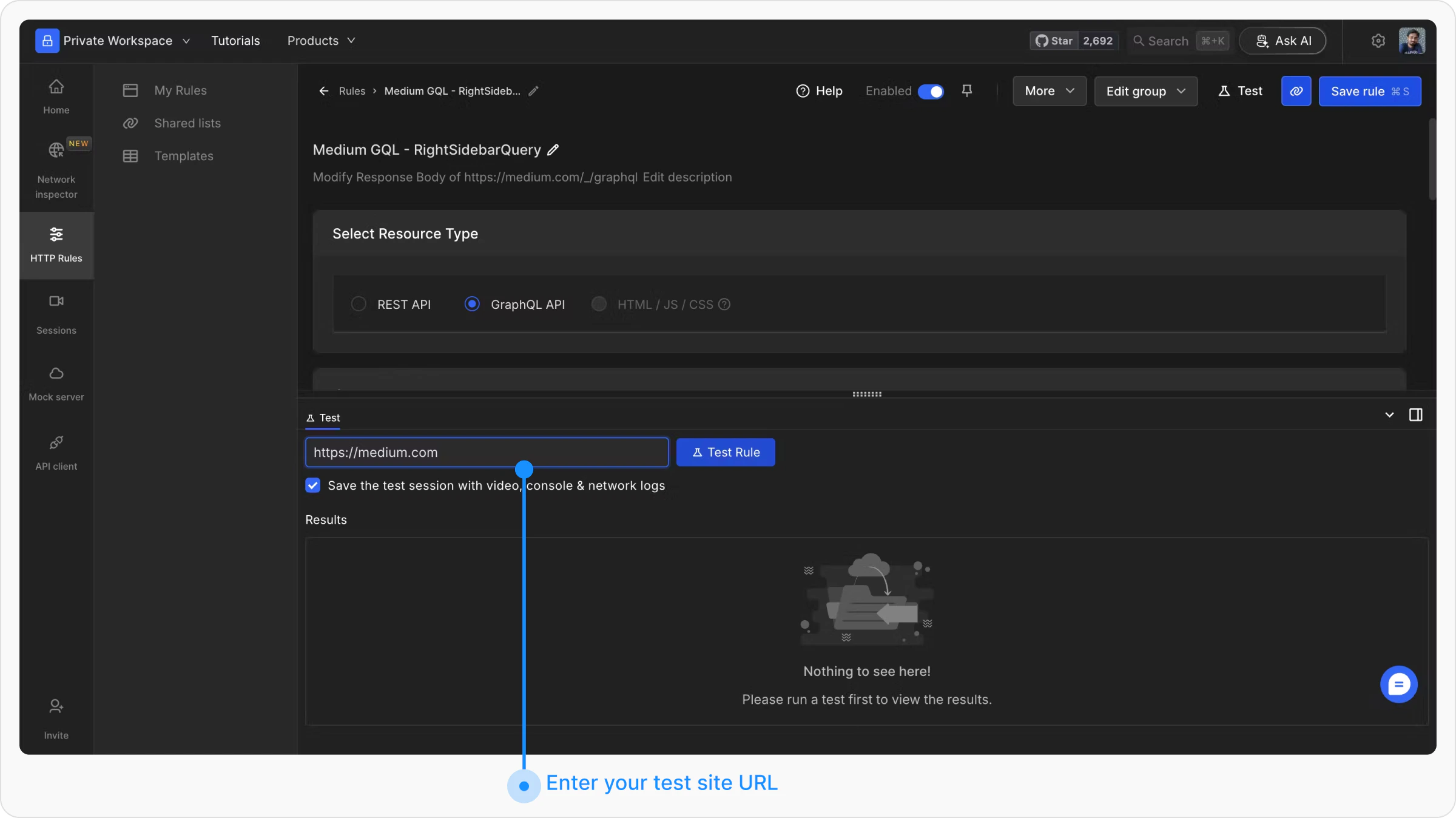
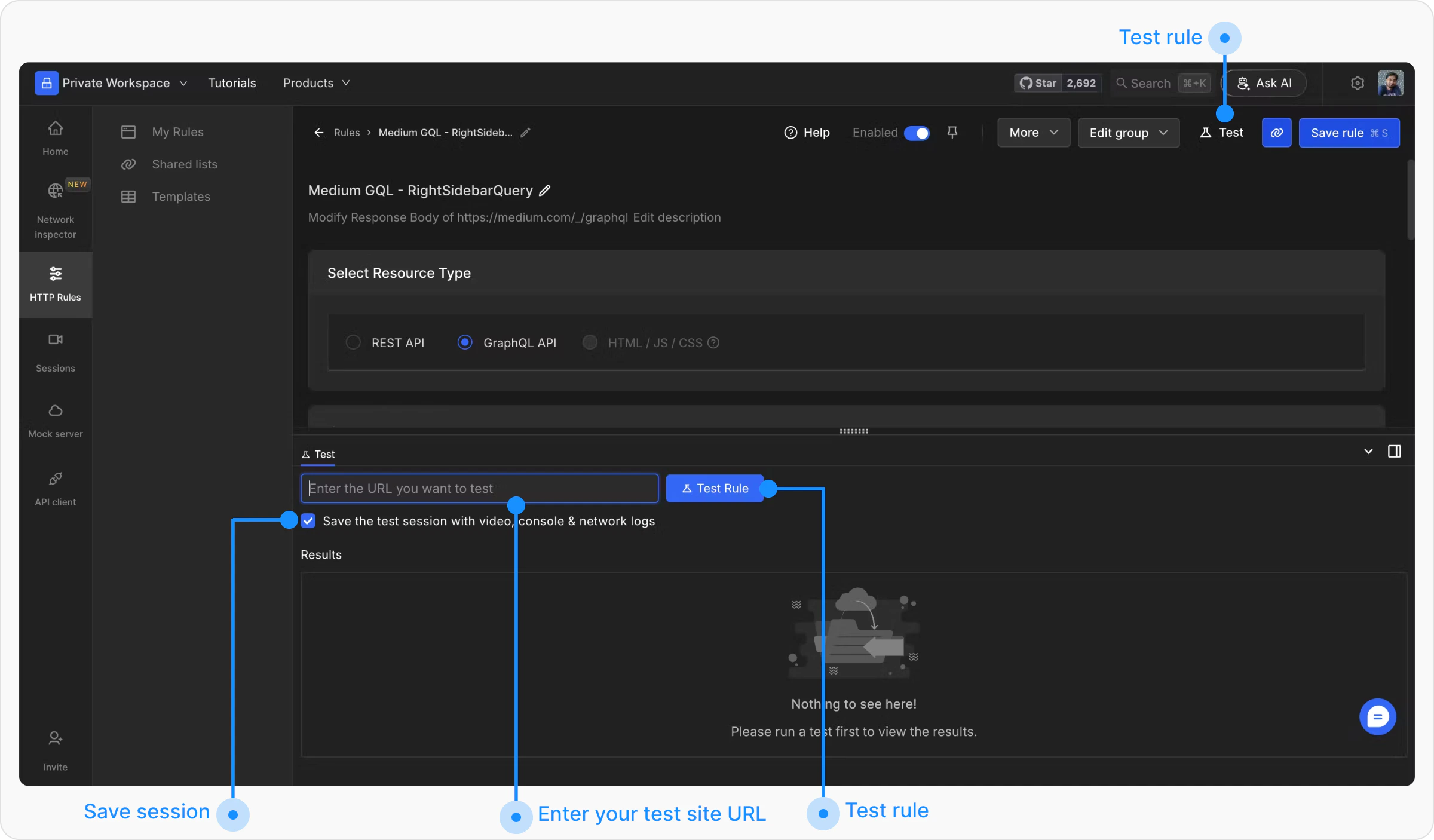 Enter the URL of the webpage where you expect to apply your rule, and click the **Test Rule** button. Additionally, you can check the ***Save the test session with video, console & network logs*** checkbox if you want to capture session details during the test for deeper analysis.
 After clicking the **Test Rule** button, the specified URL will open in a new tab or within the test environment. A widget will appear on the page, displaying the status of the applied rules. The widget allows you to:
* View details about the active rule.
* Confirm whether the rule has been applied as expected.
* Make adjustments if needed.
After clicking the **Test Rule** button, the specified URL will open in a new tab or within the test environment. A widget will appear on the page, displaying the status of the applied rules. The widget allows you to:
* View details about the active rule.
* Confirm whether the rule has been applied as expected.
* Make adjustments if needed.
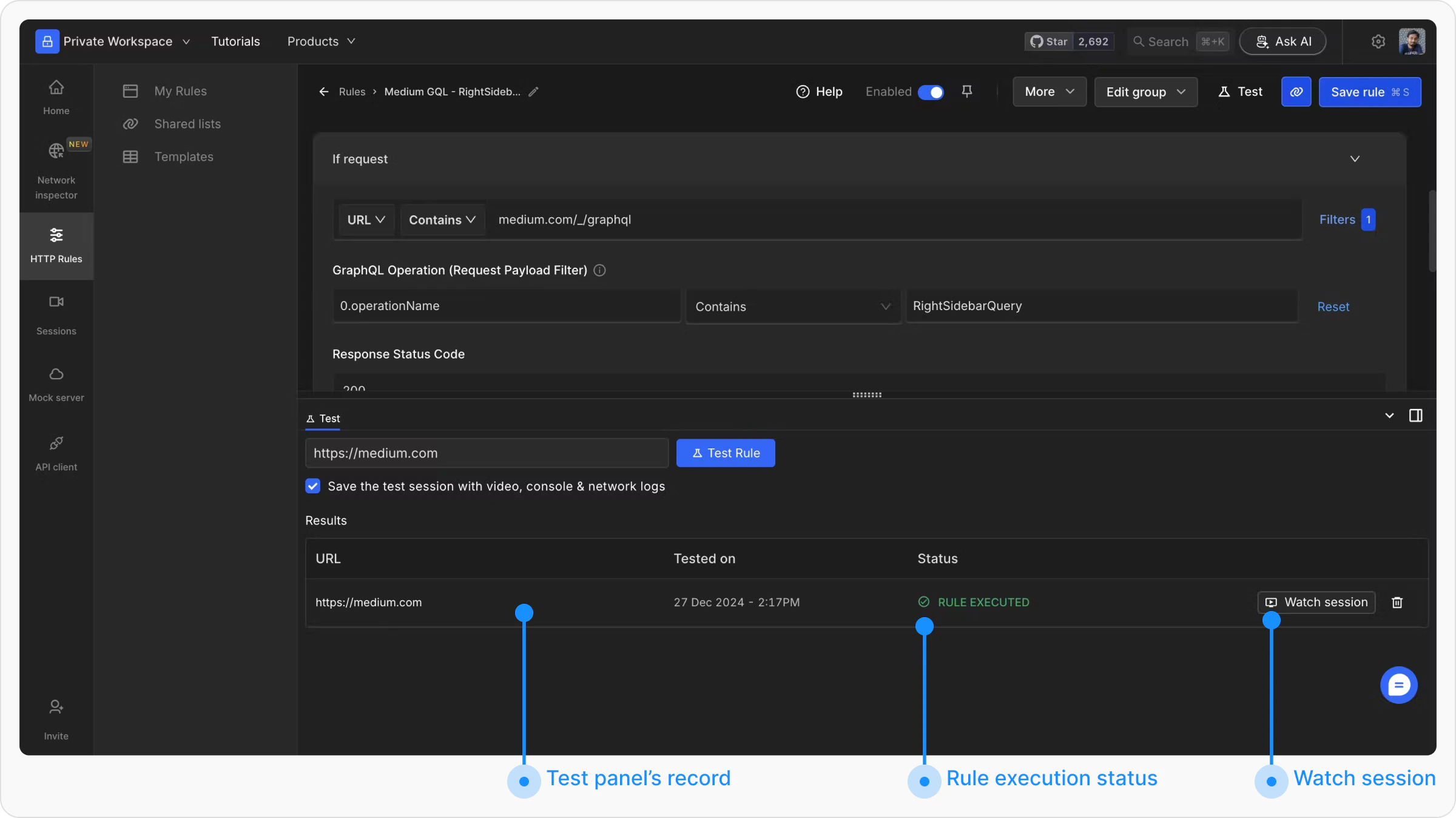
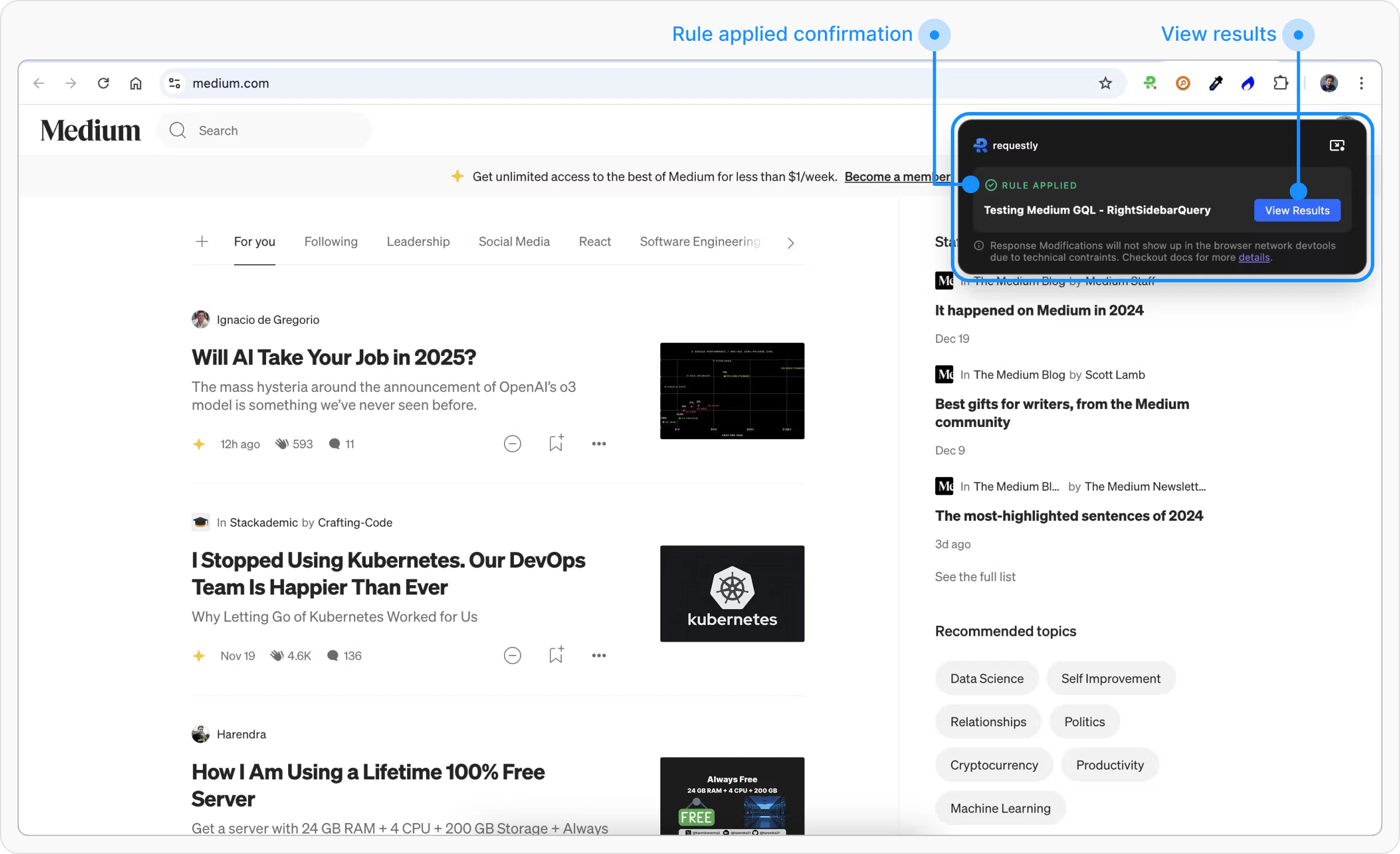 When you’re done with testing, click on the **View Results** button to generate a detailed test report in the rule editor. This report provides insights into how the rule performed and whether any adjustments are necessary.
 ## Advanced Usage: View Test Session
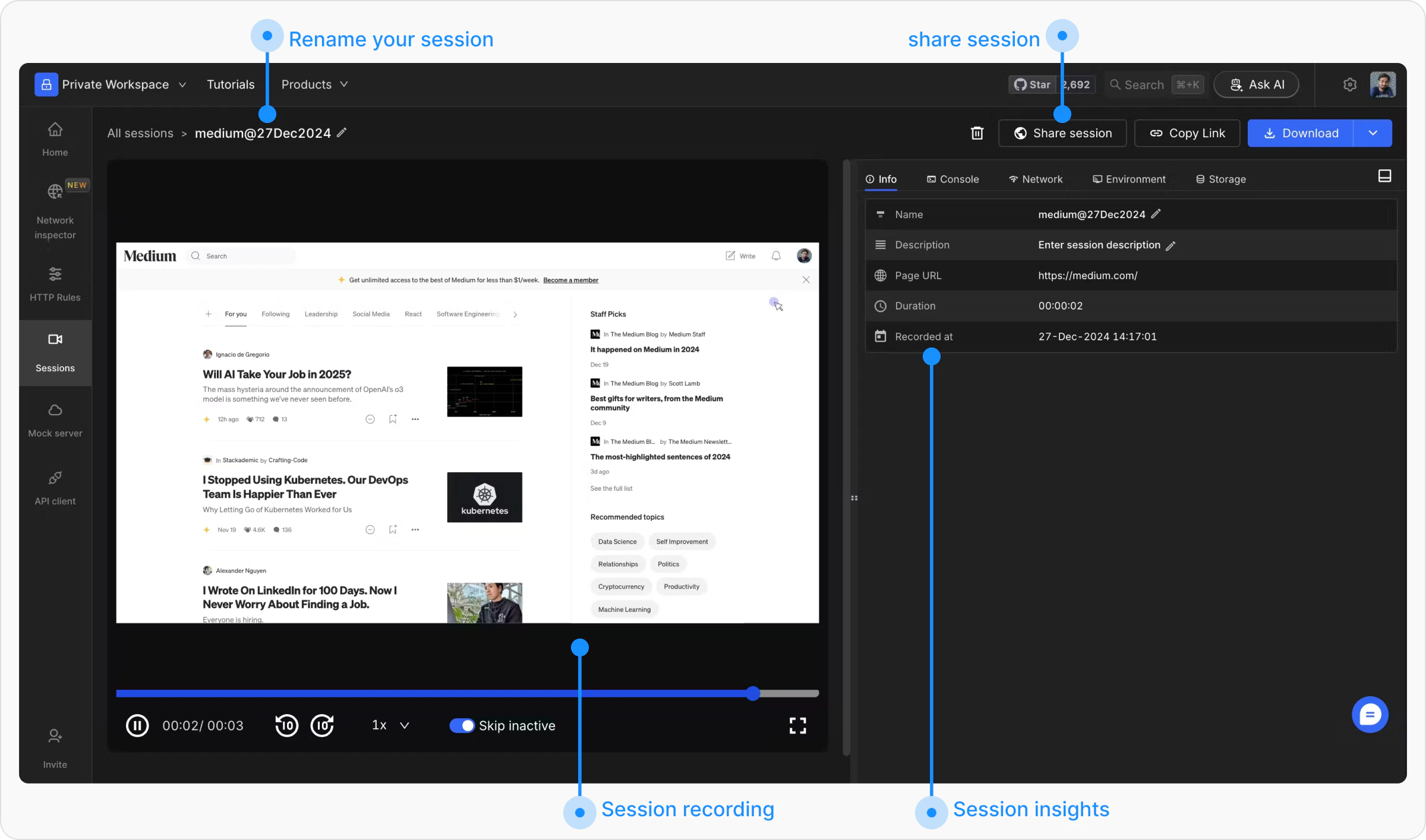
To gain more details about the test report, you can view the network and console logs of the testing session by clicking on the **Watch Session** button. Requestly Interceptor maintains reports for the last three tests you’ve run for each rule. Learn [more about the sessions here](/sessions/record-bug-reports).
## Advanced Usage: View Test Session
To gain more details about the test report, you can view the network and console logs of the testing session by clicking on the **Watch Session** button. Requestly Interceptor maintains reports for the last three tests you’ve run for each rule. Learn [more about the sessions here](/sessions/record-bug-reports).
 ## Key Considerations
* **Browser Limitations**: Modified request bodies or headers may not be visible in browser developer tools but are applied to the actual network request.
* **URL Compatibility**: Ensure the entered URL matches the source condition specified in the rule for accurate testing.
* **Performance Constraints**: For some rules, such as delaying network requests, ensure delays are within allowable thresholds to avoid performance bottlenecks.
## Key Considerations
* **Browser Limitations**: Modified request bodies or headers may not be visible in browser developer tools but are applied to the actual network request.
* **URL Compatibility**: Ensure the entered URL matches the source condition specified in the rule for accurate testing.
* **Performance Constraints**: For some rules, such as delaying network requests, ensure delays are within allowable thresholds to avoid performance bottlenecks.