> ## Documentation Index
> Fetch the complete documentation index at: https://interceptor-docs.requestly.com/llms.txt
> Use this file to discover all available pages before exploring further.
# Rules Status Syncing
> Learn how to manage rules status syncing in team workspaces to ensure consistent configurations or independent rule management.
***
Rules status syncing allows all members of a shared workspace to maintain consistent rule statuses. If one user enables a rule, the rule is automatically enabled across the workspace for all members. This feature is particularly beneficial for teams involving non-technical roles, such as sales or customer success, ensuring that the same configurations are applied universally.
In a standard development workflow, it is generally recommended to keep rules status syncing turned off to avoid unintended changes affecting all users.
### Enabling Rules Status Syncing
Rules status syncing can only be activated in team workspaces. To enable this setting, follow the steps below:
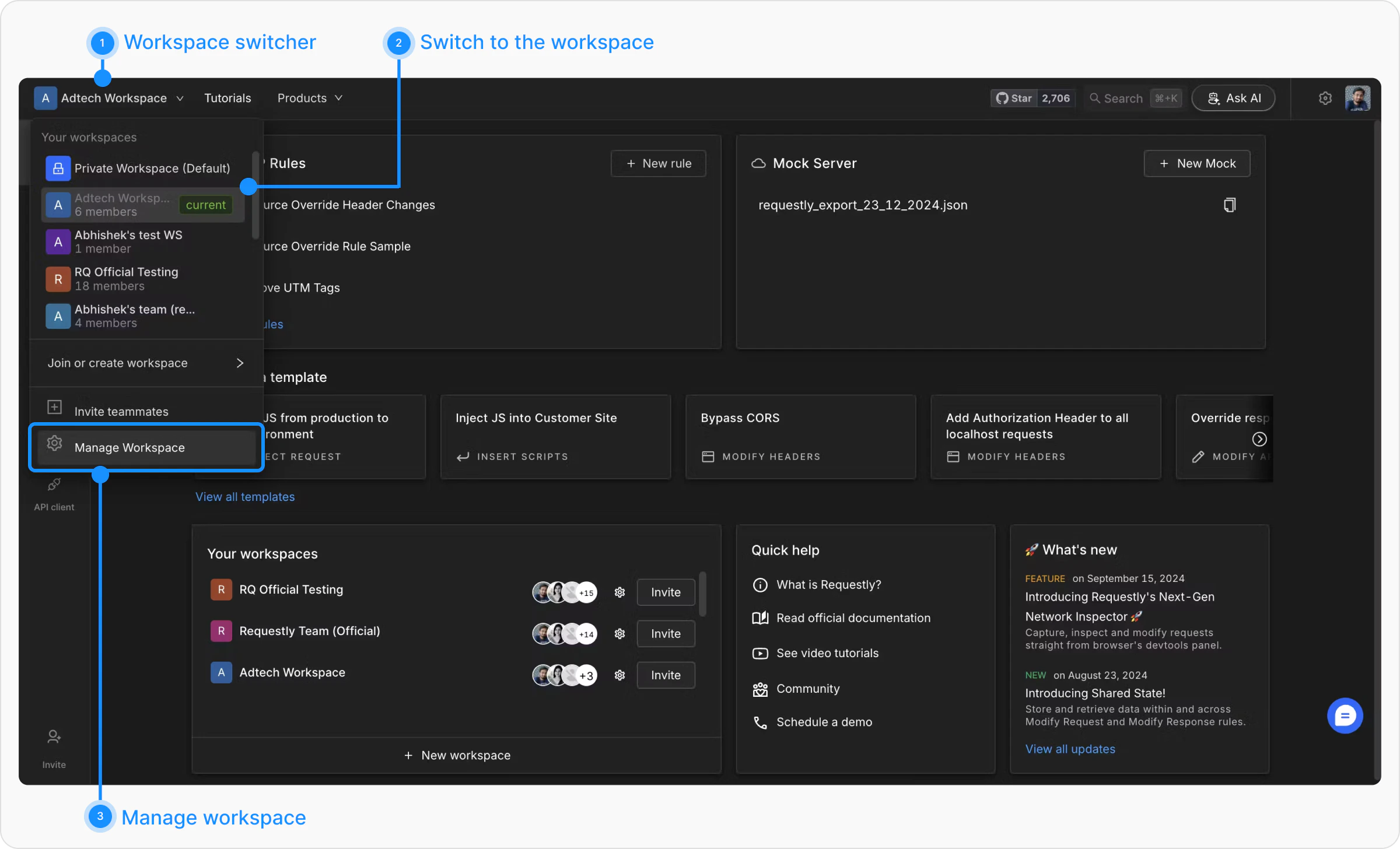
Switch to the desired workspace using the workspace switcher dropdown. From the dropdown, open the "Manage Workspace" link.
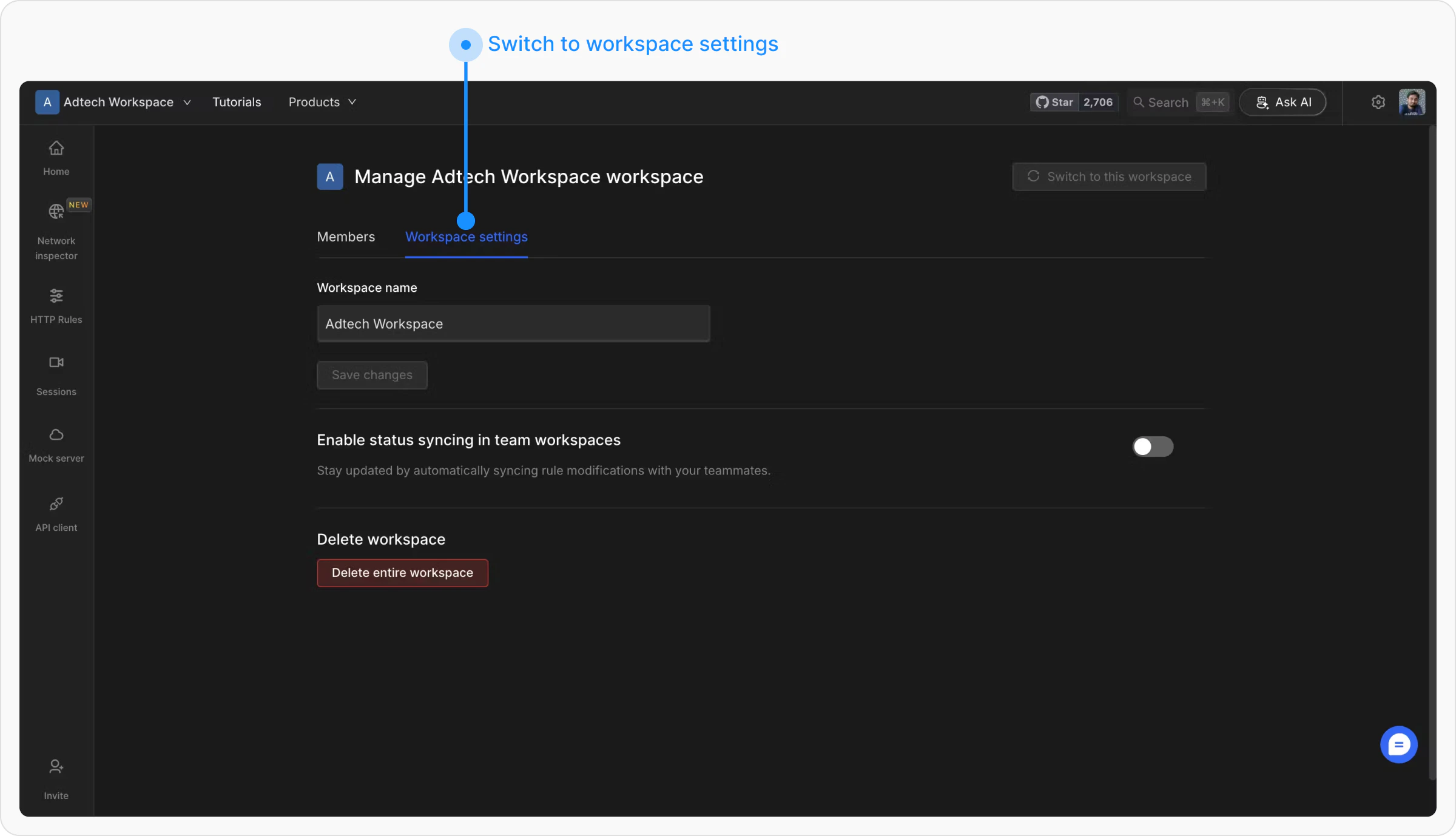
 In the workspace management interface, switch to the "Workspace Settings" tab. This tab contains various configuration options specific to the workspace.
 Locate the toggle option labeled **"Enable status syncing in team workspaces."** Use this toggle to enable or disable rules status syncing across workspace members as required.
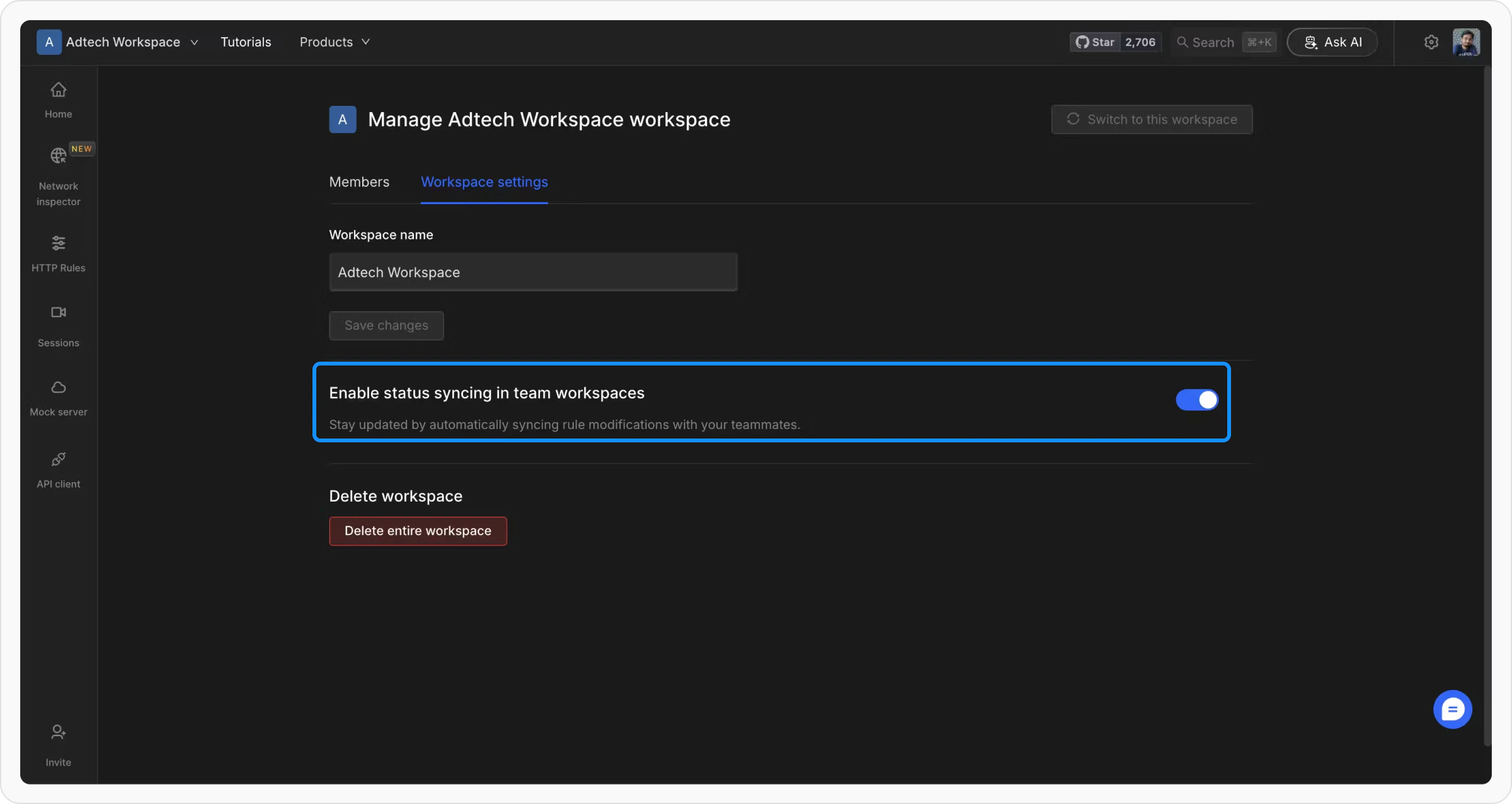 Once this setting is enabled, any changes to rule statuses by one user will automatically reflect for all workspace members. Conversely, disabling this feature will allow individual users to manage rule statuses independently.