> ## Documentation Index
> Fetch the complete documentation index at: https://interceptor-docs.requestly.com/llms.txt
> Use this file to discover all available pages before exploring further.
# Requestly Interceptor Integration with BrowserStack App Live
> Learn how to use Requestly Interceptor with BrowserStack App Live to inspect and modify network requests by configuring BrowserStack Local and system proxy settings.
## Prerequisite
1. Download [Requestly Interceptor Desktop app](https://requestly.com/downloads/desktop/)
2. You will also need your browser stack access key.
1. Go to your browser stack account’s settings page - [https://www.browserstack.com/accounts/settings](https://www.browserstack.com/accounts/settings)
2. Under the product section you should see an `Access Key` under the `Local Testing` section
Next you will need to setup the BrowserStackLocal App
## Setup BrowserStackLocal
1. Download the [BrowserStackLocal App](https://www.browserstack.com/docs/local-testing/releases-and-downloads)
2. Start the [Local App](https://www.browserstack.com/docs/app-live/local-testing#enable-local-testing)
3. Open the Local dashboard at [http://localhost:45454/](http://localhost:45454/)
4. Under **Tunnel Settings,** set the ip and port as shown in the Requestly Interceptor dashboard
.png?fit=max&auto=format&n=goWI1O0WUCIMQT01&q=85&s=09e3e3fffefd34fb264e86409cb7fe2b) 5. Enable the `Force Local` option.
5. Enable the `Force Local` option.
.png?fit=max&auto=format&n=goWI1O0WUCIMQT01&q=85&s=dc6ab13e0540c4e65bd50368b72f8abf) 6. Click `Show More` and enable `Force Proxy` and `MITM Proxy` options.
6. Click `Show More` and enable `Force Proxy` and `MITM Proxy` options.
.png?fit=max&auto=format&n=goWI1O0WUCIMQT01&q=85&s=7147fe4c9a2f2c3f6397fd8c9132ac66) 7. Scroll to the top and click `Update Command` to apply the settings.
1. Download [BrowserStackLocal Binary](https://www.browserstack.com/docs/local-testing/releases-and-downloads).
2. Open command-prompt/terminal and run the following command.
```powershell theme={null}
./ --key --local-proxy-host --local-proxy-port --force-proxy --force-local
```
3. ensure to replace the `access key` , `proxy_ip` and `proxy_port`
## Start an App Live session
1. Log in to the [App Live](https://app-live.browserstack.com/?_gl=1*xznwek*_gcl_au*NjIyODA0NTY2LjE3Mjg5ODY1Mzk.) dashboard.
7. Scroll to the top and click `Update Command` to apply the settings.
1. Download [BrowserStackLocal Binary](https://www.browserstack.com/docs/local-testing/releases-and-downloads).
2. Open command-prompt/terminal and run the following command.
```powershell theme={null}
./ --key --local-proxy-host --local-proxy-port --force-proxy --force-local
```
3. ensure to replace the `access key` , `proxy_ip` and `proxy_port`
## Start an App Live session
1. Log in to the [App Live](https://app-live.browserstack.com/?_gl=1*xznwek*_gcl_au*NjIyODA0NTY2LjE3Mjg5ODY1Mzk.) dashboard.
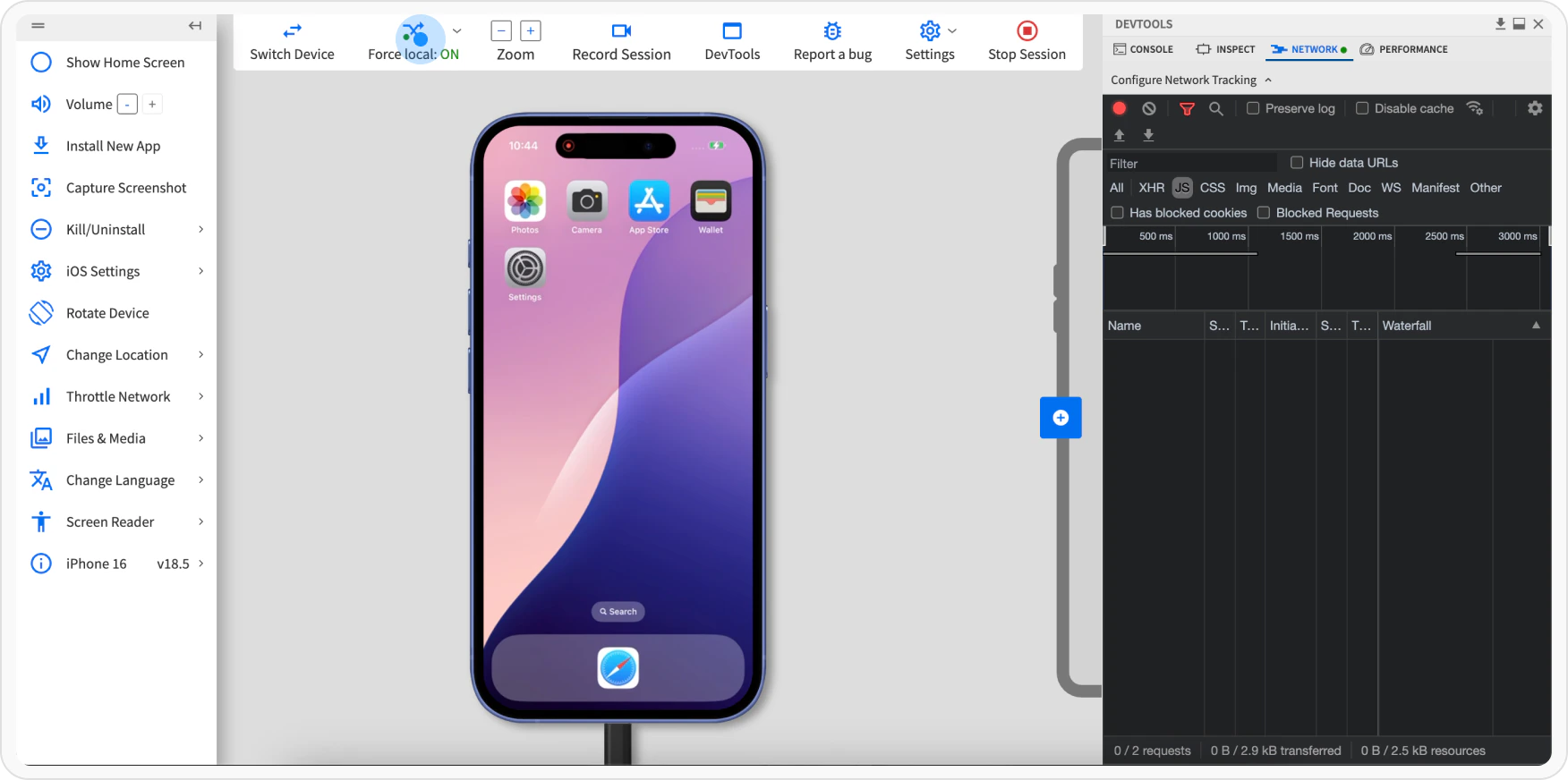
 2. Verify that **Force Local** is **On**.
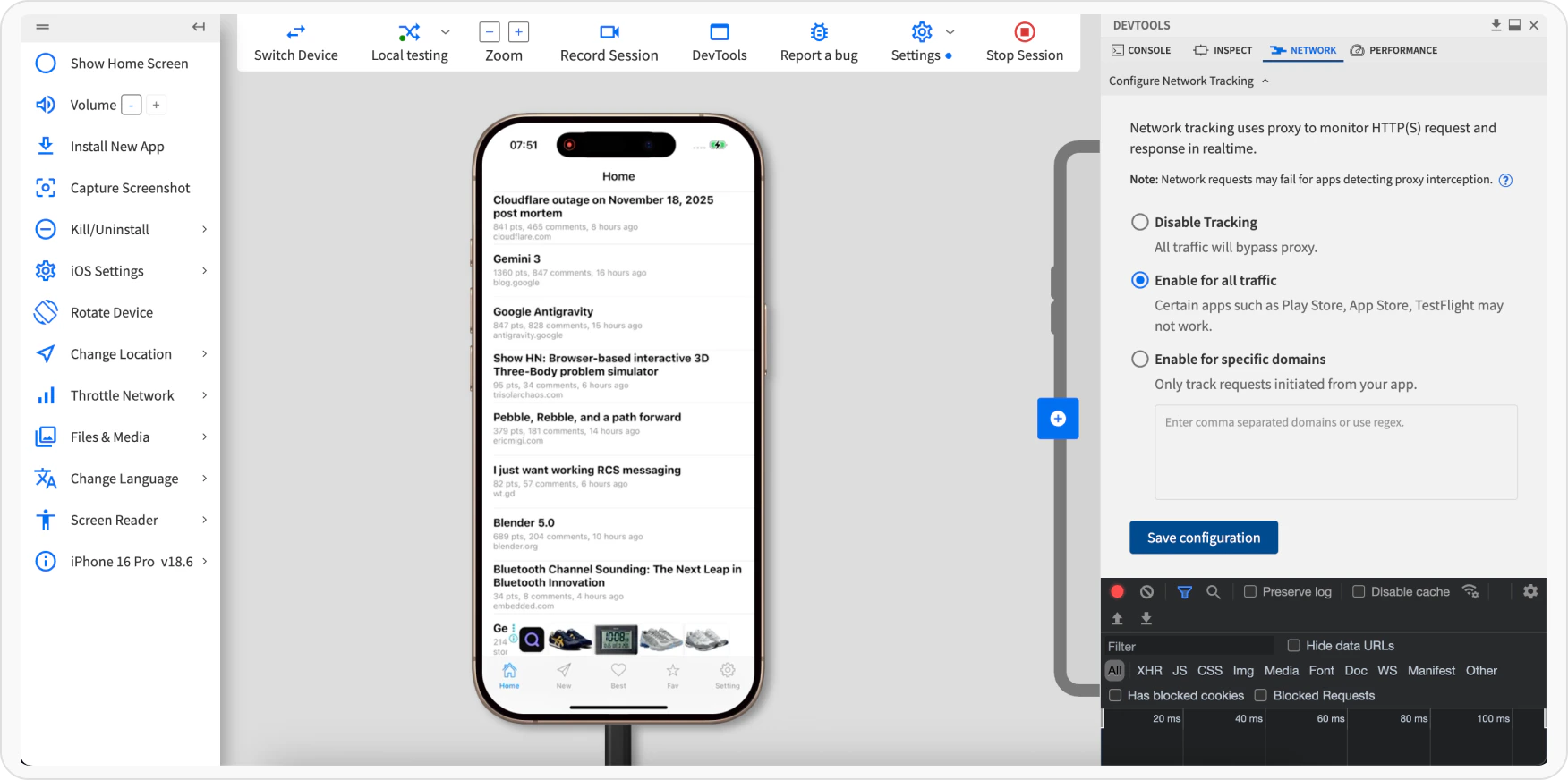
 3. In **Devtools**, click the **Network** tab, and select the **Enable for all traffic** option. Click **Apply**.
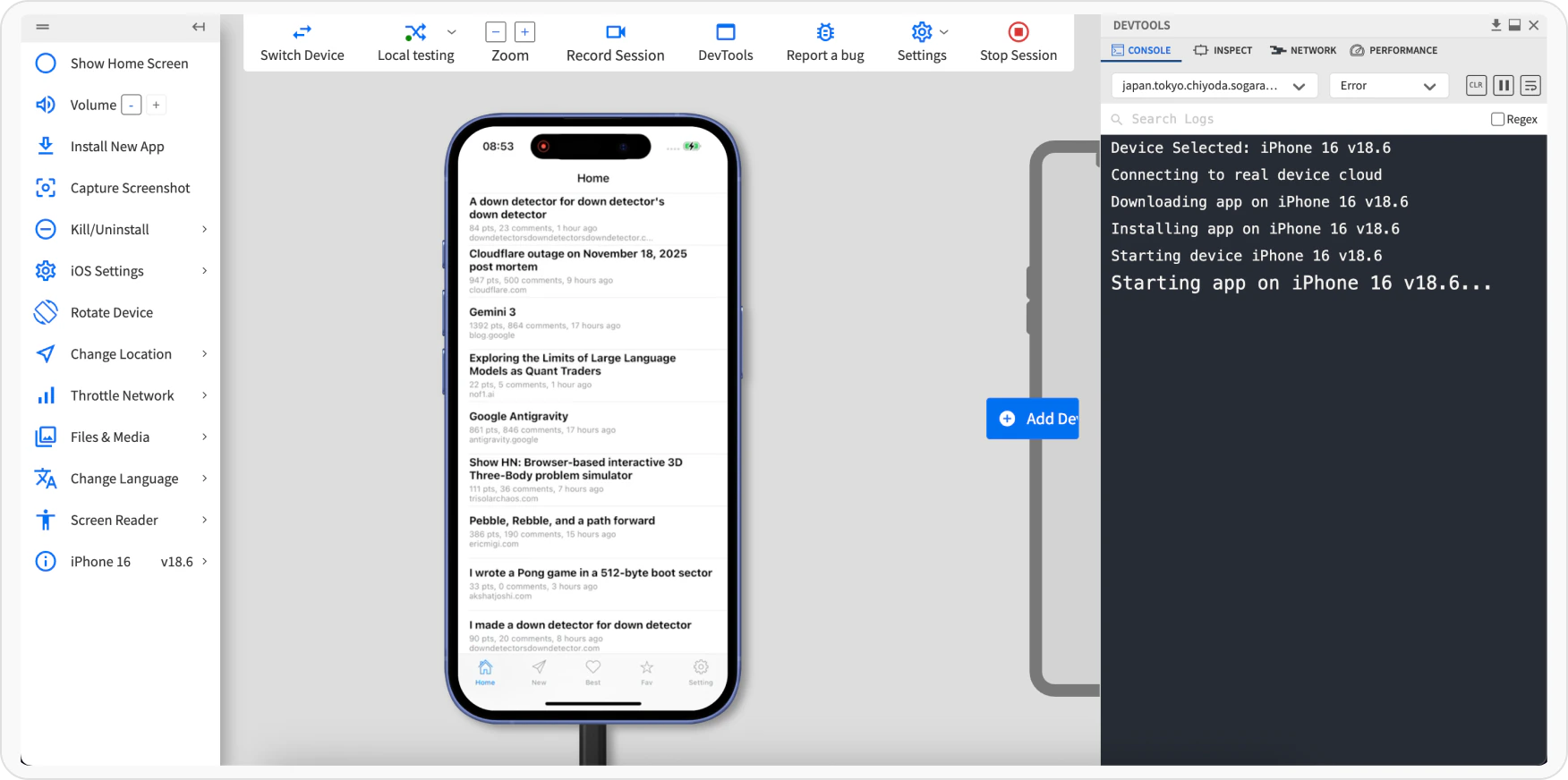
 You should now be able to see all the requests from your app session running inside browserstack. You can also modify these requests using [Requestly Interceptor Rules](/http-rules/overview) and see them take effect inside the App Live session.