> ## Documentation Index
> Fetch the complete documentation index at: https://interceptor-docs.requestly.com/llms.txt
> Use this file to discover all available pages before exploring further.
# Desktop App Setup
The Requestly Interceptor Desktop App is a powerful **network interceptor** designed for developers. Whether you're building, testing, or debugging, it gives you the tools to intercept, inspect, and modify both **requests and responses** across your entire system
It goes beyond what browser-based tools can offer by supporting full system-level traffic interception, making it perfect for debugging desktop apps, mobile simulators, and more.
### **Install Desktop App**
The Desktop application offers additional features compared to the Browser Extension, as browser extensions are limited by security and other restrictions imposed by browsers. For example, while a browser extension cannot access local files, the Desktop app can. Here are some advantages of using the Desktop app:
1. It can access local files, enabling you to map files in mock responses.
2. The Desktop app can set up system-wide or application-level proxies, allowing it to intercept traffic from browsers, desktop applications, and mobile apps.
3. It can intercept traffic from Android/iOS simulators.
4. It can record an application's traffic and use it to create bulk mocks.
5. It allows you to import and view HAR files easily.
Click here to download the Desktop App for your OS.
## **Desktop App Interface**
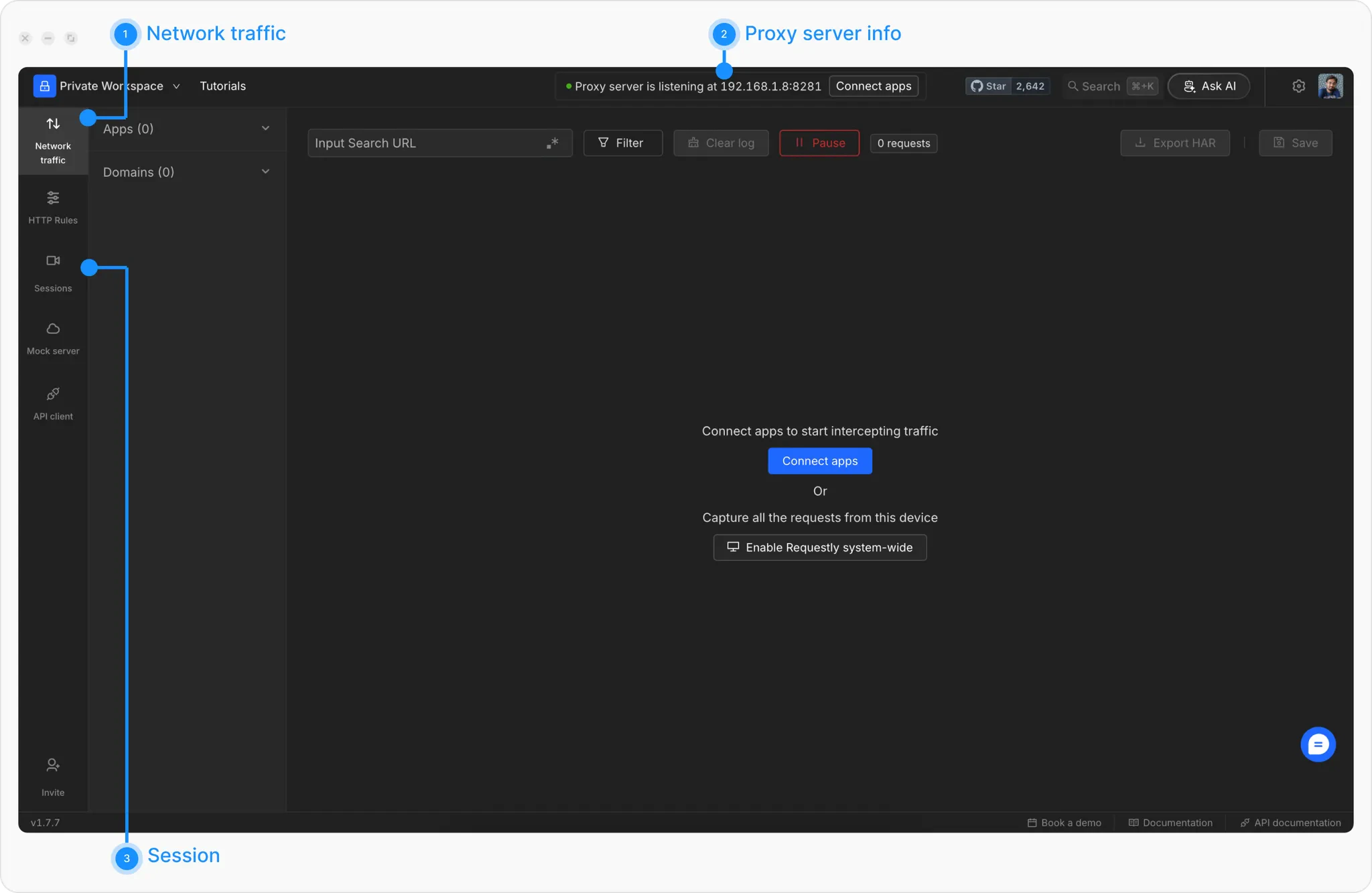
The Desktop App interface closely mirrors the Web App interface, maintaining a consistent experience across platforms. However, there are some key differences from the Browser Extension:
1. **Network Traffic Tab** , Located on the left sidebar, this is the main feature of the Desktop App. It enables you to intercept traffic from desktop apps, Android simulators, iOS simulators, and even proxy traffic from mobile apps for detailed analysis.
2. **Proxy Server Indicator** , The `Proxy Server is listening` bar indicates that the proxy server is running on the Desktop App. It is used to intercept traffic from the various places mentioned above and display it in the Network Traffic table. Clicking the `Connect apps` button provides options to connect to browsers, desktop apps, mobile simulators, mobile apps, and more.
3. **Sessions** , Sessions in the Desktop App are recorded from the Network Traffic table, making them slightly different from the Web App. These sessions can be used for reference or to create bulk mocks.
4. Apart from these differences, the rest of the interface remains the same as the Web App.
The Desktop App’s additional capabilities make it ideal for scenarios requiring non-browser traffic interception and advanced mocking.
 ## When To Use The Desktop App
Use the Desktop App when you want to:
* intercept traffic from mobile apps, emulators, desktop apps, terminal tools, or Node.js
* capture system-wide traffic through a local proxy
* work with localhost traffic and advanced debugging scenarios
* record API sessions, import HAR files, or create mocks from captured traffic
If you only need browser-based interception and a lighter setup, start with the [Browser Extension setup](/getting-started/quick-start-guide/browser-extension-setup).
## Recommended Next Steps
Learn how interception works across browsers, devices, and runtimes.
Record requests and responses you can analyze, replay, or share.
Use captured traffic to modify, replay, or mock backend behavior.
Follow the interception troubleshooting path if setup is complete but traffic is missing.
## When To Use The Desktop App
Use the Desktop App when you want to:
* intercept traffic from mobile apps, emulators, desktop apps, terminal tools, or Node.js
* capture system-wide traffic through a local proxy
* work with localhost traffic and advanced debugging scenarios
* record API sessions, import HAR files, or create mocks from captured traffic
If you only need browser-based interception and a lighter setup, start with the [Browser Extension setup](/getting-started/quick-start-guide/browser-extension-setup).
## Recommended Next Steps
Learn how interception works across browsers, devices, and runtimes.
Record requests and responses you can analyze, replay, or share.
Use captured traffic to modify, replay, or mock backend behavior.
Follow the interception troubleshooting path if setup is complete but traffic is missing.